
How to Show Tax-Included and Tax-Excluded Prices in Shopify
Help retail and business customers understand your pricing. Learn how to display VAT-inclusive and VAT-exclusive prices on Shopify product and collection pages with the Pluginos VAT Dual Prices app.

Oct 13, 2026 · 15 min read
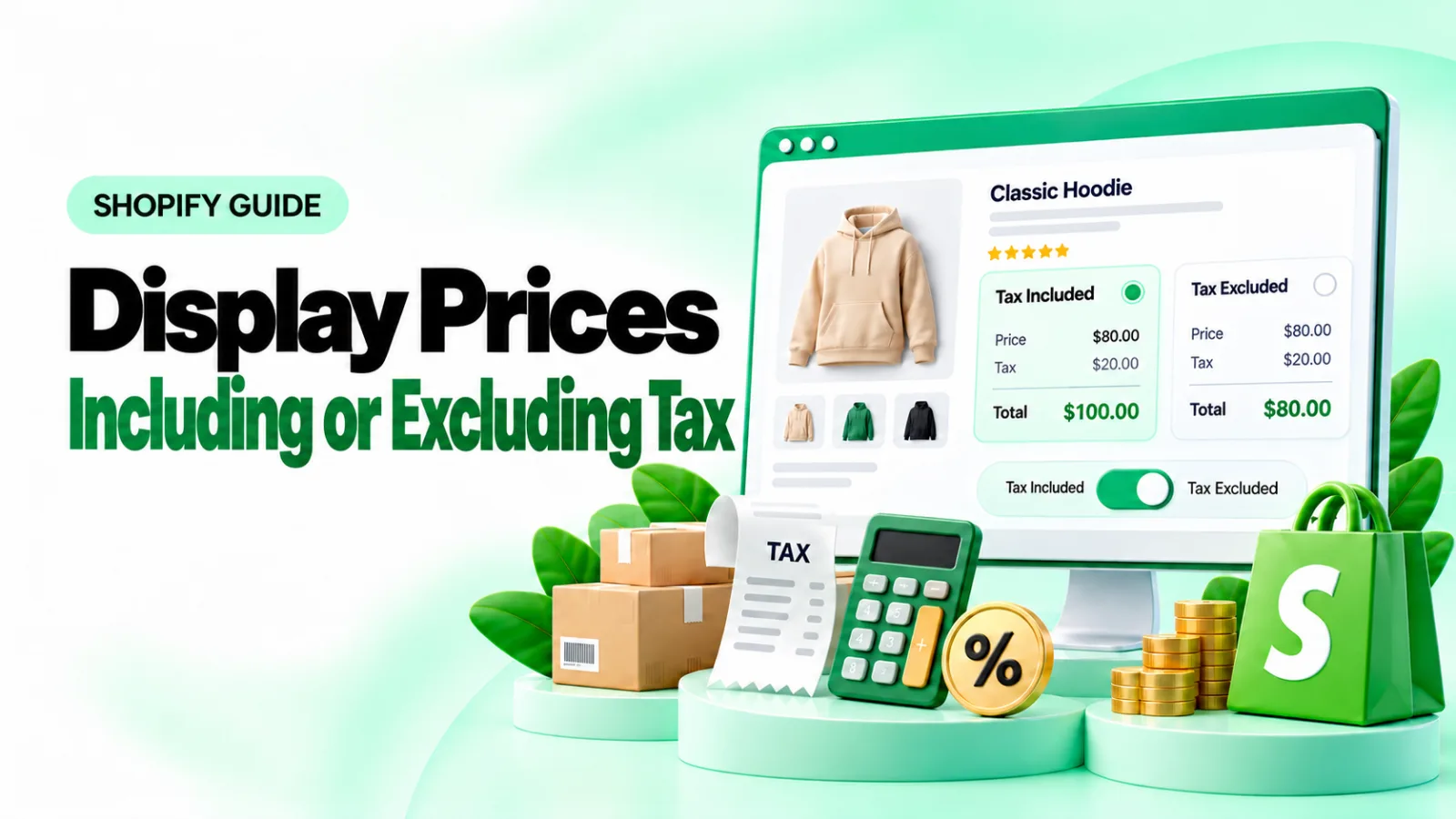
A customer looking at a £120 product should know whether that price includes VAT. A business buyer may also want to see the £100 net price before comparing suppliers. Showing both figures gives each buyer useful pricing information without making them calculate the difference.
Shopify dual VAT pricing means displaying tax-inclusive and tax-exclusive prices for the same product. You can show one price format or both, depending on your customers and storefront requirements.
To display prices including or excluding tax in Shopify, first check whether your catalog prices already contain tax. Configure Shopify’s tax settings for the actual transaction, then use a display app such as Pluginos VAT Dual Prices to present the appropriate figures on product and collection pages.
This guide explains Shopify dual price display, the calculations behind it, and how to configure a useful layout for retail, B2B, and wholesale customers.
In this guide
Understand inclusive and exclusive prices
Configure Shopify tax settings
Set up VAT display with Pluginos
Check product and collection displays
Calculate net, gross, and VAT amounts
Test your configuration
Troubleshoot missing or incorrect prices
VAT Included vs VAT Excluded: What Is the Difference?
VAT-inclusive pricing in Shopify displays a price that already contains the applicable tax. VAT-exclusive pricing in Shopify displays the amount before that tax is added.
The same amounts are also called gross and net prices:
Price format | Meaning | Example at an illustrative 20% VAT rate |
|---|---|---|
Net or VAT-exclusive price | Product price before VAT | £100.00 |
VAT amount | Tax associated with that price | £20.00 |
Gross or VAT-inclusive price | Product price including VAT | £120.00 |
When showing a price including VAT on Shopify, label it clearly, such as £120.00 incl. VAT. For a price excluding VAT on Shopify, use £100.00 excl. VAT.
These are two presentations of the same product price, not two different products. The VAT-inclusive amount also does not necessarily include shipping, import duties, or every other charge associated with an order.
All rates in the examples below are assumptions for demonstrating the calculation. Use the rate and tax treatment applicable to your products and transactions.
Does Shopify Support Dual Pricing Natively?
Shopify’s native tax settings control how listed prices are treated and how taxes appear during purchase. Shopify tax-inclusive pricing treats the entered product price as containing tax; Shopify tax-exclusive pricing adds applicable tax to the entered net price.
Shopify also provides market-level tax display settings. These help localize the primary price, but they do not by themselves configure the side-by-side net and gross layout described in this guide. See Shopify’s tax-inclusive pricing documentation.
Your goal | Starting point |
|---|---|
Display one inclusive price | Shopify tax and market settings; appropriate theme labels |
Display one exclusive price | Net catalog prices and appropriate tax settings |
Display inclusive and exclusive prices together | A dual-price app or tested theme customization |
Show different views to different customer groups | Display rules plus the correct underlying customer tax treatment |
Keep storefront presentation and tax collection aligned. A second price label does not establish VAT exemption or prove what checkout will charge.
Configure Shopify’s Tax Settings Before Adding Dual Prices
Confirm whether your catalog prices are net or gross
Before changing Shopify tax-inclusive price settings, inspect a sample product.
If its £120 price already contains £20 VAT, it is gross. If £120 is the amount before tax, it is net, and a 20% example rate would produce a £144 gross amount.
Changing a tax setting without checking this starting point can produce incorrect totals or change your margin.
Include tax in product prices when appropriate
For Shopify’s documented store-level inclusive setting:
Open your Shopify admin.
Go to Settings → Taxes and duties.
Select Include sales tax in product price and shipping rate when this matches your pricing approach.
Save the setting.
Keep Charge tax on this product selected for applicable taxable products. Review tax registrations and product overrides separately. Enabling inclusive pricing treats the entered amount as containing tax; it does not automatically increase your existing catalog prices.
Review Shopify Markets tax-inclusive pricing
For international sales, open Markets, select the relevant market, and review its Duties and taxes configuration. Shopify documents three tax display choices:
Dynamic tax display: presents inclusive or exclusive prices according to the region.
Show as included: uses prices that already include tax.
Show as line item: displays tax separately at checkout.
Check the current Shopify Markets instructions for the available controls in your admin.
Country-based visibility in a display app and market-level tax calculation have different purposes. Showing or hiding a VAT label for a country does not itself determine the applicable tax there.
How to Display Prices With and Without VAT on Shopify Using Pluginos

Pluginos VAT Dual Prices is a Shopify VAT display app for presenting VAT-included, VAT-excluded, or both prices on product and collection pages.
Developed by Pluginos, the app provides display controls for price order, horizontal or vertical layouts, percentage or fixed amounts, selected products and collections, country visibility, customer conditions, and label styling.
Scope: This walkthrough covers configurable price display on product and collection pages. It does not establish cart dual display, VAT-number validation, a shopper-operated toggle, or compatibility with a particular theme version. Keep Shopify’s actual checkout tax configuration separate from these display rules.
Follow these steps to configure your display requirements and use the app’s current onboarding instructions for its exact controls and theme activation.
1. Install the Shopify dual VAT app
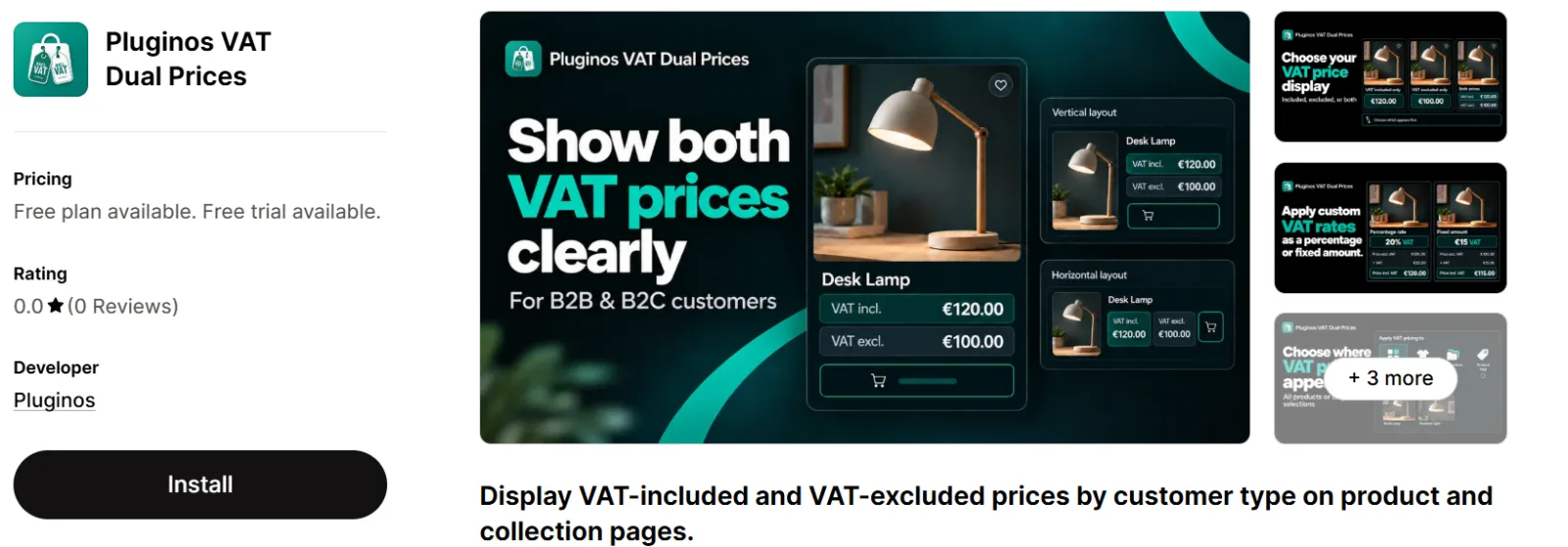
Open the app listing, select your store, and complete installation. Review the current plan limits against the number of products and display rules you need.
For a Shopify dual pricing app, prioritize the required page coverage and rule controls. A store with one rate and one audience has different needs from a mixed retail and wholesale catalog.
2. Decide which prices customers should see
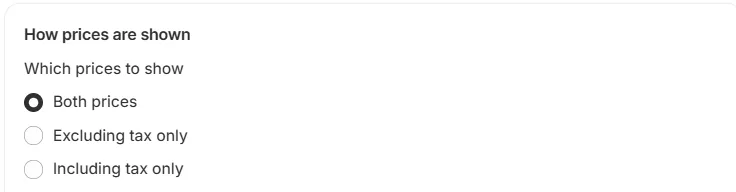
Choose VAT-inclusive prices, VAT-exclusive prices, or both. When displaying both, choose which appears first.
For a mixed storefront, an illustrative layout is:
Main price | Additional price |
|---|---|
£120.00 incl. VAT | £100.00 excl. VAT |
For a clearly identified trade audience, you might prioritize the net amount while keeping the gross amount clear. Check the presentation requirements for each market before choosing an exclusive-only view.
3. Configure the applicable amount or percentage
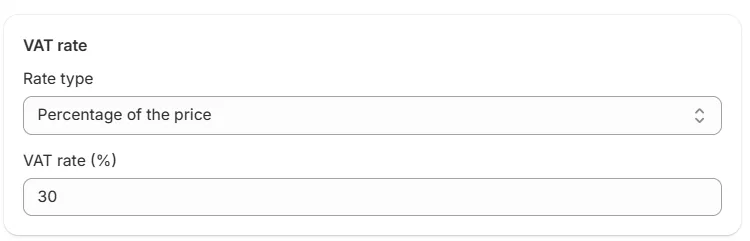
Pluginos supports custom percentage-based and fixed VAT amounts. Match the configuration to the intended calculation and verify the result against a known product.
For percentage-based VAT, the tax scales with the price. Confirm the original-price basis before applying the rule:
Original price represents | Example at 20% | Correct alternative amount |
|---|---|---|
Net price of £100 | Add VAT: £100 × 1.20 | £120 gross |
Gross price of £120 | Extract VAT: £120 ÷ 1.20 | £100 net |
Use these expected results to check the app configuration. If the available settings do not make the calculation direction clear, confirm the interpretation with Pluginos support before enabling the rule.
A fixed amount does not scale like percentage-based VAT. Verify whether it applies per item or on another basis, and test quantities, variants, and currencies. For ordinary percentage-based VAT, use the applicable percentage rather than substituting a fixed amount.
Do not treat a manually entered display rate as proof that Shopify’s checkout configuration uses the same rate.
4. Apply rules to products, collections, or tags
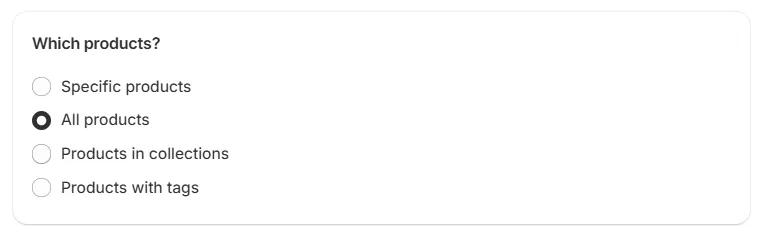
Apply VAT pricing to the whole catalog or selected products, collections, or tags.
Start with one known product, confirm its figures, then expand the rule. If products have different tax treatments, configure and test their display rules separately. Check what happens when a product meets more than one rule.
5. Choose country and customer conditions
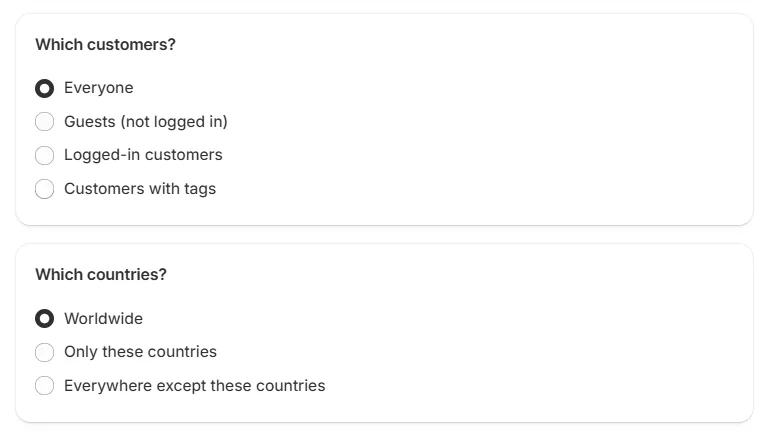
Control whether the display applies in all countries or includes or excludes selected countries. Customer conditions can also use login status or customer tags.
A trade customer tag can identify who sees a particular presentation. Test the same product as a guest, an ordinary logged-in customer, and a tagged business customer.
Customer-specific display rules determine who sees each price format. They do not establish VAT exemption eligibility. If you also want customers to sign in before viewing prices, see our Shopify login-to-see-price guide. Hiding prices until login is a separate requirement from selecting a VAT display format.
6. Customize the price labels and design
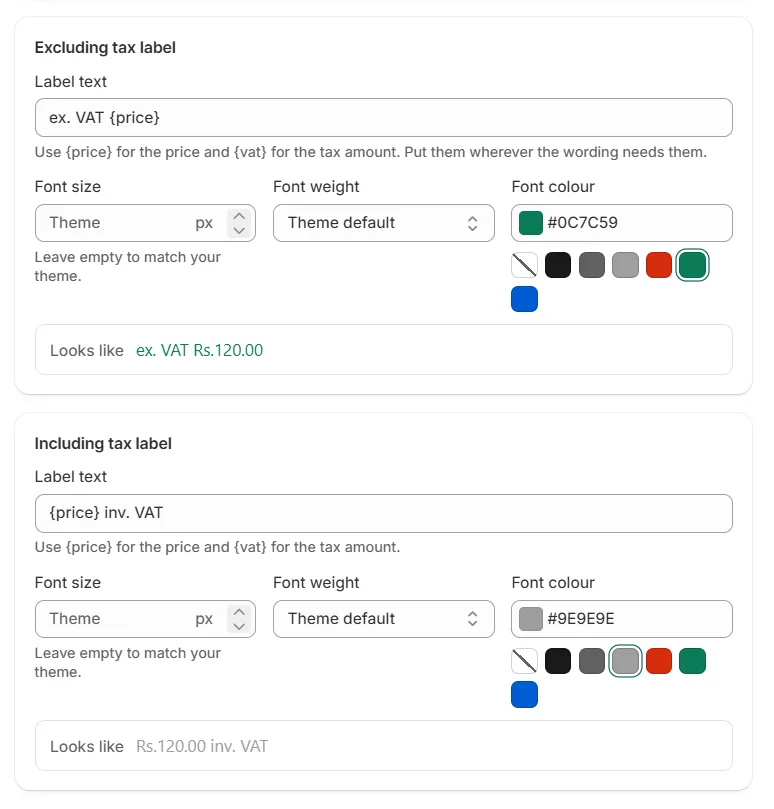
Customize the display so each amount is easy to understand. Pluginos lets you customize labels, colors, font sizes, and font weights, and arrange prices horizontally or vertically.
Use short labels such as Including VAT and Excluding VAT. Keep each label attached to its amount. On mobile, a vertical layout can prevent two prices and labels from becoming cramped.
Avoid relying on color alone to distinguish net and gross prices. Both values should remain readable and clearly identified.
7. Verify the storefront integration
Follow the app’s current theme setup instructions. Where possible, preview the display on a duplicate theme before publishing visual changes.
If you want Shopify dual pricing without coding, evaluate the app’s configuration-based approach before maintaining a custom theme calculation. Theme-specific behavior still needs verification, particularly with custom product cards or price components.
How to Show VAT on Shopify Product and Collection Pages
Product-page implementation
To show VAT on a Shopify product page, place the price labels close to the main product price. Check that changing a variant updates every relevant value.
Test a product with different variant prices. At an illustrative 20% rate, a £180 gross variant should show £150 net, while a £120 gross variant should show £100 net.
If you want to display the VAT amount on the product page as a separate number, confirm that your chosen implementation supports that output. Showing inclusive and exclusive prices does not necessarily provide a third VAT-amount field.
Collection-page implementation
To show VAT on a Shopify collection page, verify the product-card layout as well as the main product template. Pluginos supports product and collection-page pricing display.
Test sale cards, products with multiple prices, and mobile grids. A product with a price range should not show a secondary amount that appears to apply to every variant when it does not.
Cart consistency
If you also want to show VAT in the Shopify cart, assess that requirement separately. Pluginos provides the product and collection-page display features covered here. Confirm cart-specific support before planning a dual-price cart layout.
Whatever the cart layout, customers should understand how its prices relate to the product-page figures. Test the cart drawer, cart page, and checkout with the same product and destination.
Shopify B2B Dual Pricing for Retail and Wholesale Stores
Gross and net pricing in Shopify can help stores serve different buying workflows from one catalog.
Show a net price for business customers
Business buyers may need the net amount for supplier comparisons and budgeting. A tagged trade customer could see £100 excluding VAT alongside £120 including VAT in the example above.
This displays useful information without implying that every business buyer is exempt or entitled to reclaim tax.
Show a gross price for retail customers
For retail customers, make the VAT-inclusive price easy to identify where appropriate. Retail shoppers should be able to understand the displayed selling price without doing tax calculations.
Shopify B2C and B2B pricing can use different display priorities while retaining clear labels and consistent transaction pricing. For broader trade-store requirements, read our Shopify wholesale apps comparison to explore pricing, buyer access, bulk ordering, and payment terms.
Wholesale VAT pricing example
Suppose a wholesale product costs £50 net per unit at an illustrative 20% rate. Its gross unit price is £60. Ten units produce £500 net, £100 VAT, and £600 gross before other charges.
Shopify tax-exclusive wholesale prices help buyers compare product costs, but quantity discounts can change the calculation basis. Test the actual discounted order rather than multiplying a price that no longer applies.
Calculate VAT on Net Prices and From Gross Prices
Use these formulas to check inclusive and exclusive prices. Adding VAT and extracting included VAT are inverse calculations.
How to add VAT to a price
To calculate VAT on a net price:
VAT = Net price × VAT rate
Gross price = Net price × (1 + VAT rate)
For £100 at 20%, VAT is £20 and gross is £120. Enter 20% as 0.20 in the formula.
How to remove VAT from a price
To calculate VAT from a gross price:
Net price = Gross price ÷ (1 + VAT rate)
VAT amount = Gross price − Net price
For £120 at 20%, net is £100 and VAT is £20. The VAT amount from a VAT-inclusive price can also be calculated as Gross × rate ÷ (1 + rate).
Do not subtract 20% from £120 to remove included 20% VAT. That gives £96, which is incorrect.
VAT rounding on product prices
For £19.99 gross at 20%, the unrounded net amount is approximately £16.6583. A two-decimal display shows £16.66 net and £3.33 VAT.
Rounding differences become more noticeable with quantities, discounts, and mixed-rate orders. Verify the calculation at the order level instead of assuming that rounded product-page figures will reproduce every checkout total exactly.
Theme Compatibility and International Prices
For a Shopify dual price display on Dawn or another theme, check the installed theme version, product templates, and collection cards. Custom price components may need additional integration. Recheck the display after theme updates. For a storefront that needs tailored integration, explore Pluginos custom development services.
A VAT price that changes by country can reflect market configuration and applicable tax treatment. If you need broader country-based product access or price visibility, explore Pluginos Geo Restrictions. Geographic restrictions are separate from calculating VAT. Country visibility rules alone do not establish that an app automatically applies each destination’s correct rate. Test the selected market, currency, delivery address, and product rate together.
Test your VAT display before publishing
Start with one product, a known original-price basis, and an illustrative 20% calculation. Record actual results rather than assuming that the configuration works.
Test | Expected result or acceptance check |
|---|---|
£100 net product at 20% | £120 gross; £20 VAT |
£120 gross product at 20% | £100 net; £20 included VAT |
Variant changes to £180 gross | Secondary amount updates to £150 net |
Guest and tagged trade customer | Each sees the intended display rule |
Product and collection pages | Same variant basis and correct labels |
Mobile layout | Both amounts and labels remain readable |
Quantity of two | Display interpretation remains consistent with the actual order |
Discounted product | Confirm which discounted price the calculation uses |
Product with a different tax rate | Correct product rule; no standard-rate assumption |
Different market or currency | Correct basis and destination-specific treatment |
Cart and checkout | Amounts reconcile after tax, discounts, and other charges |
If a product matches multiple rules, test the overlap before expanding to the full catalog. Record the expected amount, observed amount, and customer state for each check.
Check Google Shopping price consistency
If you advertise products through Google Shopping, compare the submitted product price, visible primary price, and checkout for the target country. Google’s B2B advertising guidance includes requirements for gross-price prominence where applicable. Do not assume that a net-first trade layout is suitable for every advertising destination.
Troubleshoot Missing VAT and Price Mismatches
Problem | What to check |
|---|---|
VAT price or label is missing | Check rule scope, customer conditions, country visibility, and theme activation |
Product-page price differs from cart | Compare variant, discount, quantity, market, currency, and tax treatment |
Incorrect exclusive price | Check price basis and divide gross by 1 + rate |
VAT appears twice | Look for duplicate integrations or tax added to an already-inclusive amount |
Variant changes only one price | Verify integration with variant updates |
Wrong price for a tagged customer | Test login state, customer tag, and overlapping rules |
Display breaks after a theme update | Review changed price components and contact app support with examples |
For a missing display, work through these checks in order:
Confirm the rule applies to the product or collection.
Check the customer’s login state, tags, and country conditions.
Confirm activation for the theme and template being viewed.
Check for overlapping rules or another price-display integration.
Retest the same product and variant.
If the problem remains, send support the product, variant, theme version, market, customer state, expected amount, and observed amount. Include a screenshot of the issue without customer or payment information.
Frequently Asked Questions
Can Shopify show prices with and without VAT?
Yes, through a suitable app or tested theme implementation. Native tax settings determine the primary price treatment; a dual display provides the additional net or gross amount.
Can customers switch between VAT-inclusive and VAT-exclusive prices?
A shopper-operated VAT switcher or inclusive/exclusive price toggle is a separate capability from configurable display modes. Confirm this feature if it is essential to your store.
Does showing an exclusive price make a business customer tax exempt?
No. A customer tag or display rule can change the presentation, but exemption depends on the transaction’s applicable tax treatment. Shopify also documents that exempt customers can still pay the full listed amount under tax-inclusive pricing. See Shopify’s explanation.
Can I display the VAT amount separately on a product page?
Confirm whether your chosen implementation supports a third VAT-amount field. Showing inclusive and exclusive prices does not automatically provide that separate output.
Can Shopify display different tax-inclusive prices by country?
Shopify provides market-level tax display settings. Review those settings alongside the app’s visibility rules and verify the result for the actual destination.
Add Clear VAT Prices With Pluginos
Pluginos VAT Dual Prices helps you display VAT-inclusive and VAT-exclusive prices on Shopify product and collection pages, with control over price order, customer visibility, product scope, and styling.
Start with one product and a known VAT calculation. Configure its display, check the result as a retail and trade customer, and compare the buying journey through checkout before expanding to the rest of your catalog.
Install Pluginos VAT Dual Prices to configure VAT price display for your store.
Written by
Pluginos
Pluginos is a WordPress, WooCommerce, and Shopify development team with 8+ years of experience building plugins, apps, and eCommerce solutions. We share practical tutorials and insights based on hands-on development experience.
Related articles
Best Shopify Wholesale Apps: Which One Fits Your B2B Store?
Compare the best Shopify wholesale apps for pricing, bulk ordering, buyer access, and payment terms. Explore features, costs, and plan limits to find the right solution
Oct 11, 2026 · 23 min read
15+ Best Shopify Upsell Apps: Pricing & Features Compared
Choosing a Shopify upsell app starts with understanding your store’s needs. Compare 15 options by features, pricing, offer placement, and limitations, then use practical checklists to shortlist and test a suitable app.
Oct 10, 2026 · 22 min read
Shopify Login to See Price: How to Hide Prices and Add to Cart (2026)
Learn how to hide Shopify prices and Add to Cart until customers log in. Follow app and Liquid code methods, set wholesale approval rules, and test your storefront.
Oct 8, 2026 · 10 min read