
Shopify Login to See Price: How to Hide Prices and Add to Cart (2026)
Learn how to hide Shopify prices and Add to Cart until customers log in. Follow app and Liquid code methods, set wholesale approval rules, and test your storefront.

Oct 8, 2026 · 10 min read
Short answer: To add login to see price on Shopify, use a price-hiding app or conditional Liquid code to hide prices and Add to Cart from guests. Show a login button in their place, then reveal pricing to signed-in customers—or only approved wholesale buyers, if required.
Want shoppers to browse your Shopify catalog but sign in before seeing prices? A Shopify login to see price setup replaces public pricing with a login prompt and can hide Add to Cart until the customer qualifies for access.
This is useful for wholesale catalogs, trade-only products, and stores where buyers need approval before ordering. You can set it up with a price-hiding app or conditional Liquid code.
Decide Who Should See Prices
Before changing your store, choose between login-only access and approval-based access.
Access rule | What happens after login? |
|---|---|
Login required | Every signed-in customer can see prices. |
Login and approval required | Only eligible customers can see prices. |
Selected products restricted | The rule applies only to chosen products, collections, or variants. |
For example, a members-only shop might reveal pricing to anyone who signs in. A wholesale supplier might show prices only to accounts tagged wholesale-approved.
Signing in does not establish wholesale eligibility. Shopify customer accounts can create a customer profile when someone signs in with a new email address. Use a separate approval condition if pricing is reserved for qualified buyers. See Shopify customer accounts.
Choose an App or Custom Code
Both methods can hide prices from guests. The difference is how you manage and maintain the rules.
Method | Best suited to | What to consider |
|---|---|---|
Price-hiding app | Customer targeting, selected products, and custom buttons | Check theme integration and supported components |
Liquid code | A simple rule maintained by a developer | Apply conditions wherever prices and purchase controls appear |
Native Shopify B2B | Company accounts and catalog-based wholesale selling | Review available features and public storefront behavior |
If you already use native Shopify B2B, review its account and catalog setup first. B2B customers must sign in and be associated with company locations to access B2B-specific information. A blended store can still offer a public retail experience. See Shopify B2B sign-in guidance.
How to Add Login to See Price on Shopify Using an App
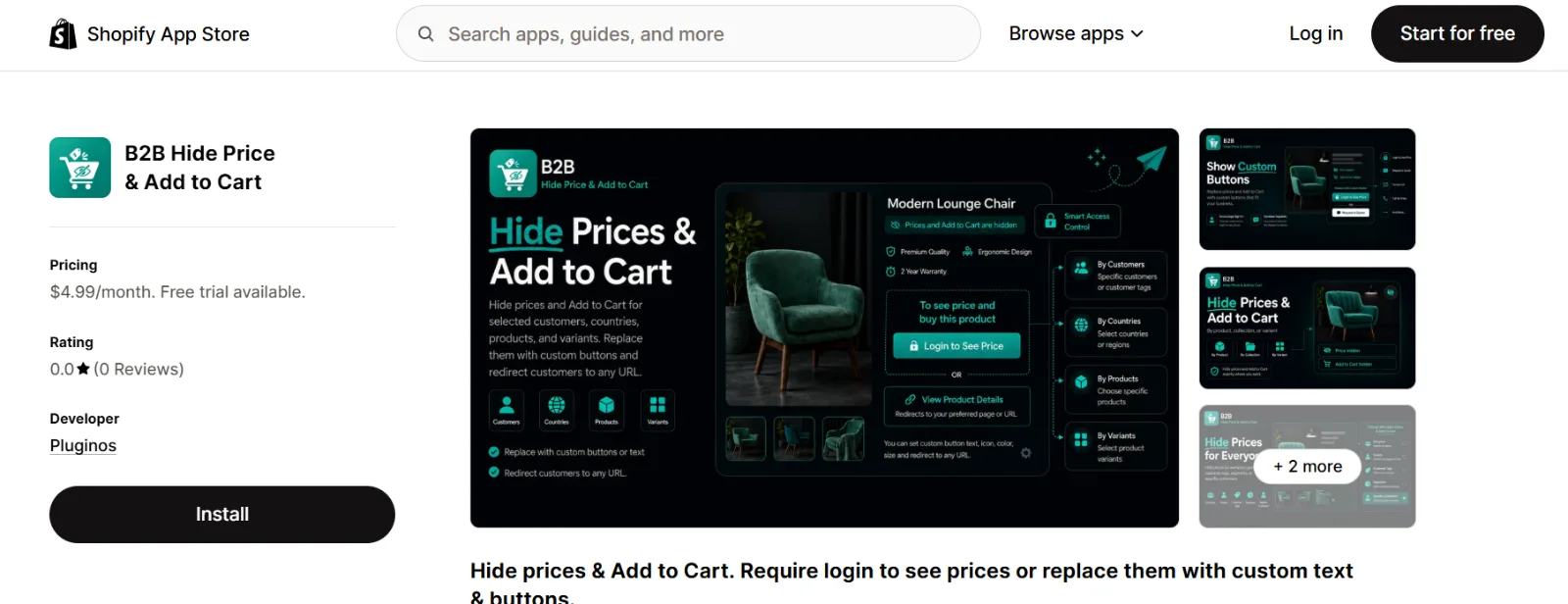
B2B Hide Price & Add to Cart by Pluginos offers configurable price and Add to Cart visibility.
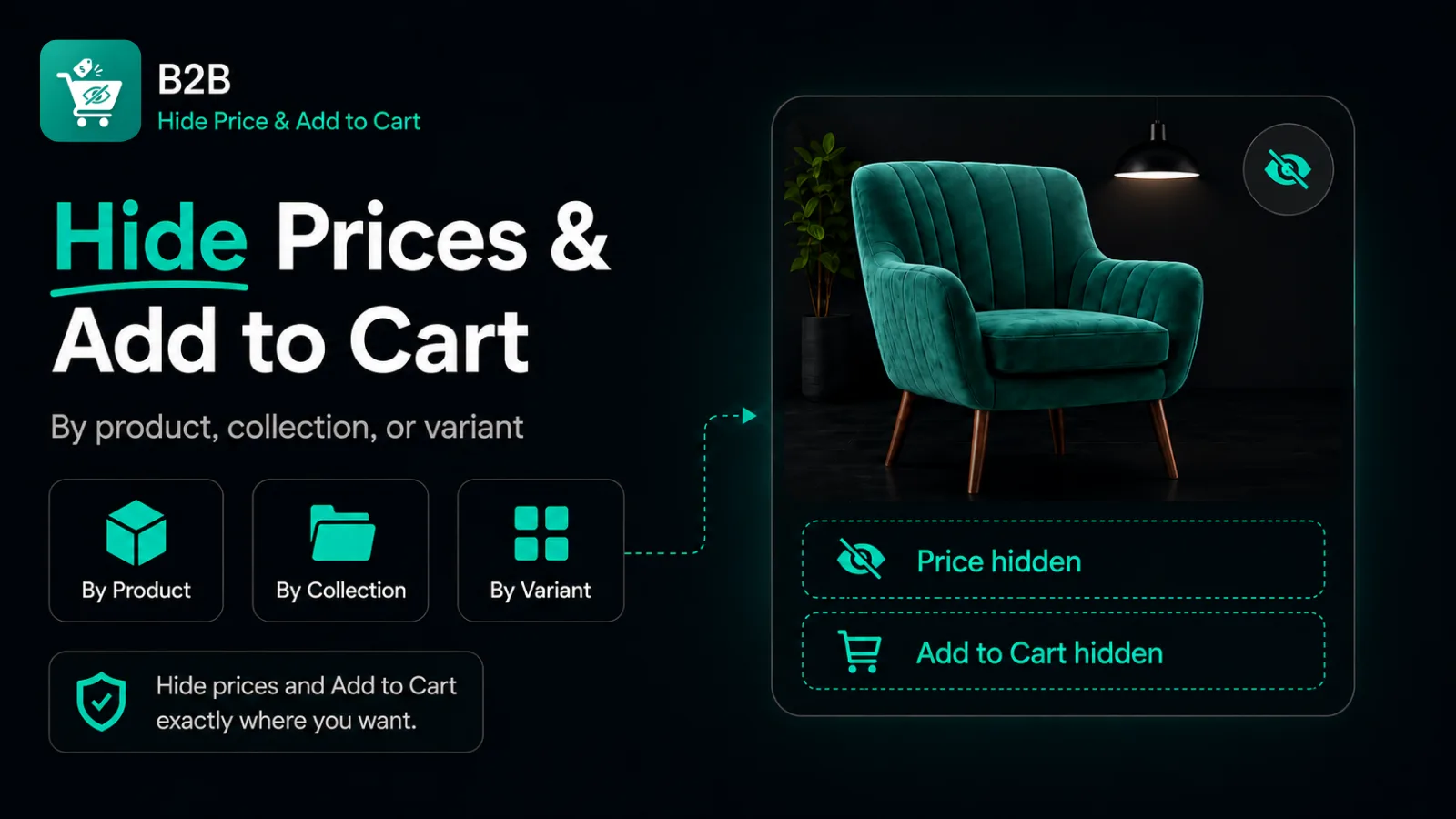
Its feature information includes targeting by product, collection, variant, customer tag, segment, email, and country, along with replacement buttons for inquiries. Follow the setup sequence below using the app’s current onboarding instructions for the exact controls.
Step 1: Check Customer Sign-In
Make sure customers have a working way to sign in. Open the login link on your storefront and complete a test sign-in before configuring visibility. This helps you separate account problems from price-hiding settings.
Step 2: Install and Connect the App
Install the app from the Shopify App Store and complete its onboarding. Follow any instructions for connecting it to your theme or enabling an app embed. Start with a few products so you can check the result before applying broader rules.
Step 3: Choose the Products to Restrict
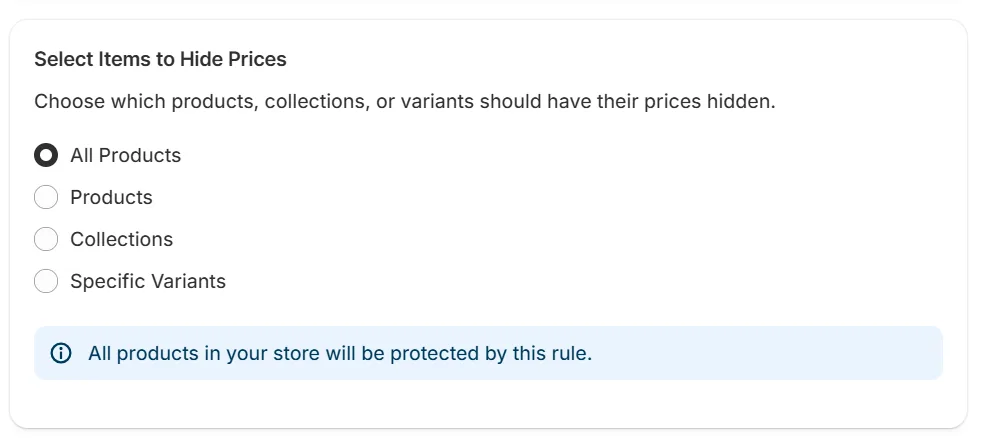
Select the products, collections, or variants that need hidden prices. For example, you could:
Restrict a wholesale collection while leaving retail prices public.
Hide prices for products that require a custom quote.
Apply rules to selected variants.
For variant restrictions, check collection cards too. A “from” price may reflect a variant whose price you intended to hide.
Step 4: Choose the Customer Conditions
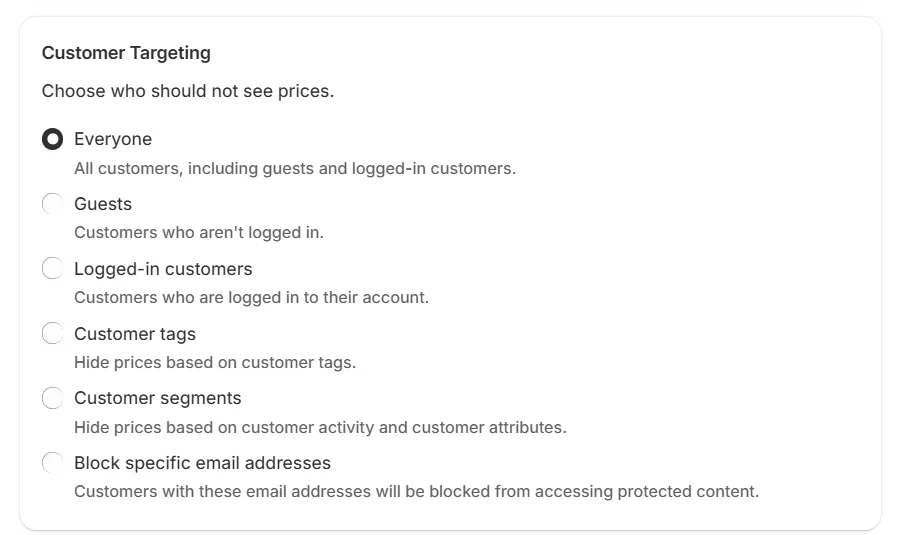
For a basic login-to-see-price setup, hide prices from guests and allow signed-in customers to see them.
The app’s feature information also includes conditions for logged-in customers, tags, segments, and email addresses. Use these when account access alone is not enough.
If you combine conditions, confirm whether all conditions must match or whether one match is sufficient. Check which rule takes priority when several apply.
Step 5: Hide Add to Cart
Apply Add to Cart hiding to the same restricted audience. Then review collection quick add, sticky purchase buttons, quick-view buttons, and accelerated checkout. Themes and third-party apps can add separate controls. Confirm which ones the integration handles.
Step 6: Add a Clear Replacement Action
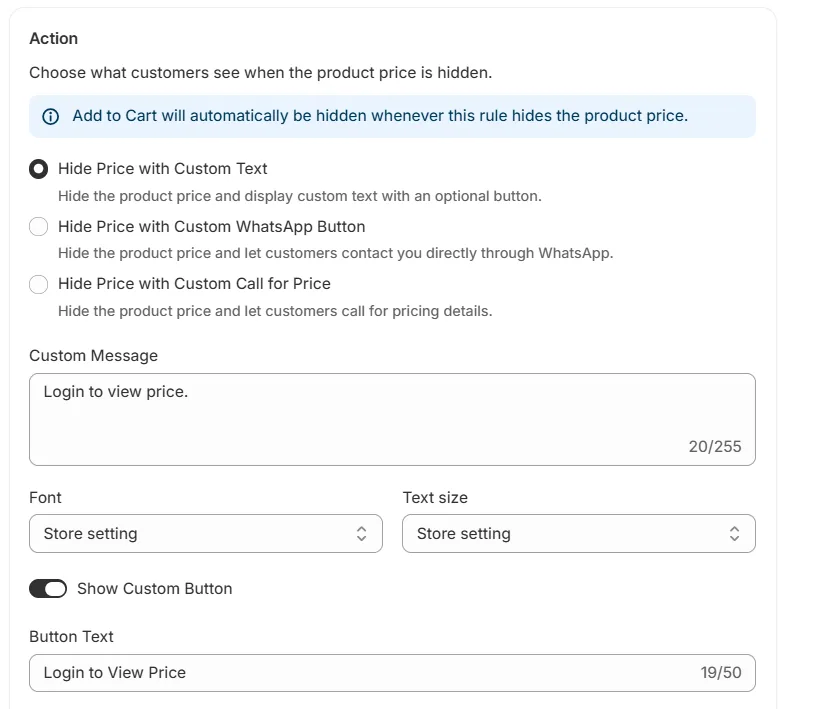
Choose a message that tells visitors what to do next.
Replacement action | When to use it |
|---|---|
Log in to see price | Eligible customers access prices after signing in |
Apply for wholesale access | Buyers need approval first |
Request a Quote | Pricing depends on quantity or specifications |
Your team handles inquiries through messaging | |
Call for Price | Buyers need phone assistance |
Use custom text and redirect options to connect each button to the right destination. If you use a custom URL, open it as a guest to confirm it works.
A quote button should lead to a working inquiry process. Confirm whether your setup includes a form, notifications, and a way to manage requests.
Step 7: Test the Login Journey
Visit a restricted product as a guest, sign in, and return to the product. Check that eligible customers see the correct price and purchase controls. If approval is required, test an ordinary customer separately from an approved buyer.
How to Hide Shopify Prices Without an App
You can use Liquid to check whether a customer is signed in before outputting pricing. Shopify makes the customer object available globally when a customer is logged in. See Shopify’s Liquid customer reference.
The examples below follow Dawn-style patterns. Adapt them to your theme’s existing code and test them in a duplicate theme.
Step 1: Duplicate Your Theme
Go to Online Store → Themes and duplicate your current theme. Make changes in the copy and record your edits so you can review them after theme updates.
Step 2: Find the Price Output
In Dawn, useful starting points include sections/main-product.liquid, snippets/price.liquid, and snippets/card-product.liquid.
Preserve the variables and render arguments already used at each location. They support the theme’s price formatting and variant behavior. See the Dawn price snippet.
Step 3: Add a Login Check to Product Pricing
At a product-page location that already renders the price snippet, wrap the existing render with a condition:
{% if customer %}
  {% render 'price',
    product: product,
    use_variant: true,
    show_badges: true
  %}
{% else %}
  <a href="{{ routes.account_login_url }}">
    Log in to see price
  </a>
{% endif %}
Keep any additional arguments from your original render. Do not leave the original price output beside the replacement.
Use routes.account_login_url for the login destination. Shopify’s routes object supports standard storefront URLs and customer-account redirects. See the Liquid routes reference.
If you edit price.liquid itself, wrap its existing output. Do not make the snippet render itself.
Step 4: Hide Prices on Collection Cards
Dawn product cards use card_product when rendering prices. A corresponding pattern is:
{% if customer %}
  {% render 'price',
    product: card_product,
    price_class: '',
    show_compare_at_price: true
  %}
{% else %}
  <a href="{{ routes.account_login_url }}">
    Log in to see price
  </a>
{% endif %}
Adapt the existing render rather than adding another one. Also check sections that reuse product cards, such as recommendations, featured collections, and search results.
Step 5: Hide Purchase Buttons for Guests
At the existing Dawn-style purchase-button render, apply the same login condition:
{% if customer %}
  {% render 'buy-buttons',
    block: block,
    product: product,
    product_form_id: product_form_id,
    section_id: section.id,
    show_pickup_availability: true
  %}
{% else %}
  <p>Sign in to view prices and order this product.</p>
{% endif %}
Dawn’s buy-buttons snippet includes Add to Cart and accelerated checkout when enabled. Quick add and other controls can render elsewhere.
Check variant changes as well. Any refreshed pricing or purchase content must follow the same access rule.
Show Prices Only to Approved Wholesale Customers
A login-only condition reveals prices to every signed-in customer. For approval-based access, check a merchant-controlled customer tag.
{% if customer %}
  {% if customer.tags contains 'wholesale-approved' %}
    {% render 'price', product: product, use_variant: true %}
  {% else %}
    <p>Your account needs approval to view trade prices.</p>
  {% endif %}
{% else %}
  <a href="{{ routes.account_login_url }}">
    Log in to see price
  </a>
{% endif %}
The tag wholesale-approved is an example. A straightforward workflow is to review the buyer’s application, assign the approval tag, and let the buyer sign in to access pricing. Give unapproved customers a clear application route and apply the same approval condition to purchase controls.
Native Shopify B2B company account requests also support approval: new applicants cannot access B2B pricing or place orders until approved. See Shopify company account requests.
Visibility and pricing are separate tasks. Revealing a price does not create a wholesale discount or customer-specific price list. Your pricing setup must supply the correct amount.
Hide Prices by Country When Needed
Country rules can help stores direct regional buyers to a distributor or sales team. For example, visitors in a selected country might see “Contact your local distributor” instead of a price.
Check how location is determined and what happens when shoppers change their market. For a separate regional visibility app, explore Pluginos Geo Restrictions for Shopify.
Does Hiding Prices Keep Them Private?
Hiding a storefront price does not automatically protect the underlying pricing data.
CSS can conceal a price while leaving it in the HTML. JavaScript that hides pricing after loading may allow a brief price flash. Liquid can omit guarded markup, but other outputs need separate review.
If confidentiality matters, check product JSON, JavaScript data, cart responses, structured data, metadata, third-party tools, and connected feeds.
Shopify’s Ajax Product API provides product JSON containing monetary properties. Editing a theme price snippet does not, by itself, change that API.
Likewise, removing Add to Cart changes the interface. If ordering must require approval, verify purchase authorization separately.
Will Login to See Price Affect SEO?
You can keep product descriptions, images, specifications, and collection content public while restricting prices. Visitors can still understand the products before signing in.
Price information in search results needs separate attention. Google can use product structured data for richer appearances, and merchant listing markup requires an active price. Removing pricing can affect eligibility for those features. See Google’s merchant listing documentation.
If prices should stay out of public results, review guest-visible markup, SEO app output, and connected feeds. Do not replace hidden pricing with a fake zero price. Keep product information accurate.
Test Your Setup Before Publishing
Use three visitor states: a guest, an ordinary signed-in customer, and an approved buyer.
What to test | What to confirm |
|---|---|
Product pages | Correct price or message for each visitor |
Collection and search cards | Restricted prices remain hidden |
Variant selection | Refreshed content follows the rule |
Recommendations and featured products | Visibility remains consistent |
Quick view and quick add | No unintended pricing or purchase controls |
Login and inquiry buttons | Correct destinations open |
Mobile and cart drawer | Experience remains usable and consistent |
Repeat the relevant checks after theme updates, app installations, or rule changes.
Common Problems and Fixes
Prices appear in collections: Check the card’s separate price output or integration.
Prices return after selecting a variant: Check the refreshed product content.
Prices remain hidden after login: Look for missing approval tags, unconditional CSS, or conflicting rules.
Customers can still order: Review purchase routes and authorization.
A theme update breaks the setup: Review your recorded changes, reapply what is needed, and test before publishing.
Frequently Asked Questions
Does Requiring Login at Checkout Hide Product Prices?
No. Shopify’s checkout sign-in requirement controls checkout access. Price visibility needs a separate implementation. See Shopify customer-account customization options.
Can I Add Login to See Price Without an App?
Yes. You can use Liquid conditions in your theme. Apply them to the relevant pricing and purchase components, then maintain the changes when your theme changes.
Can Logged-In Customers Still Have Hidden Prices?
Yes. Use an approval condition, such as a customer tag, when some account holders should remain restricted.
Will These Examples Work With Every Shopify Theme?
No single code example covers every theme. These examples follow Dawn-style patterns. Verify the correct components and arguments for your theme and version.
To manage configurable visibility rules, explore B2B Hide Price & Add to Cart by Pluginos. Start with a small product selection, test the full customer journey, and then extend the rules across your catalog.
Written by
Pluginos
Pluginos is a WordPress, WooCommerce, and Shopify development team with 8+ years of experience building plugins, apps, and eCommerce solutions. We share practical tutorials and insights based on hands-on development experience.
Related articles
6 Methods to Hide Out-of-Stock Variants in Shopify
Learn six ways to hide out-of-stock variants in Shopify without deleting them. Compare native controls, theme customizations, and automatic hiding with the HV Hide Out of Stock Variants app.
Oct 7, 2026 · 20 min read
How to Hide Sold-Out Variants in Shopify With Pluginos
Learn how to hide sold-out variants in Shopify with HV Hide Out of Stock Variants by Pluginos. Set visibility rules and automatically restore variants after restocking.
Sep 30, 2026 · 6 min read
10+ Best Shopify Subscription Apps in 2026: Pricing & Features Compared
Compare the 10 best Shopify subscription apps in 2026, including Appstle, Recharge, Seal, and Shopify Subscriptions. Explore pricing, transaction fees, key features, and the best option for your store.
Sep 28, 2026 · 12 min read