
How to Prevent Overselling on Shopify (Black Friday)
Overselling on Black Friday costs you refunds and angry customers. This guide walks through the free Shopify settings that stop it, from inventory tracking and safety stock to the add-to-cart limit, plus what to do for bundles, hype drops and cart holds.

Nov 12, 2026 · 16 min read
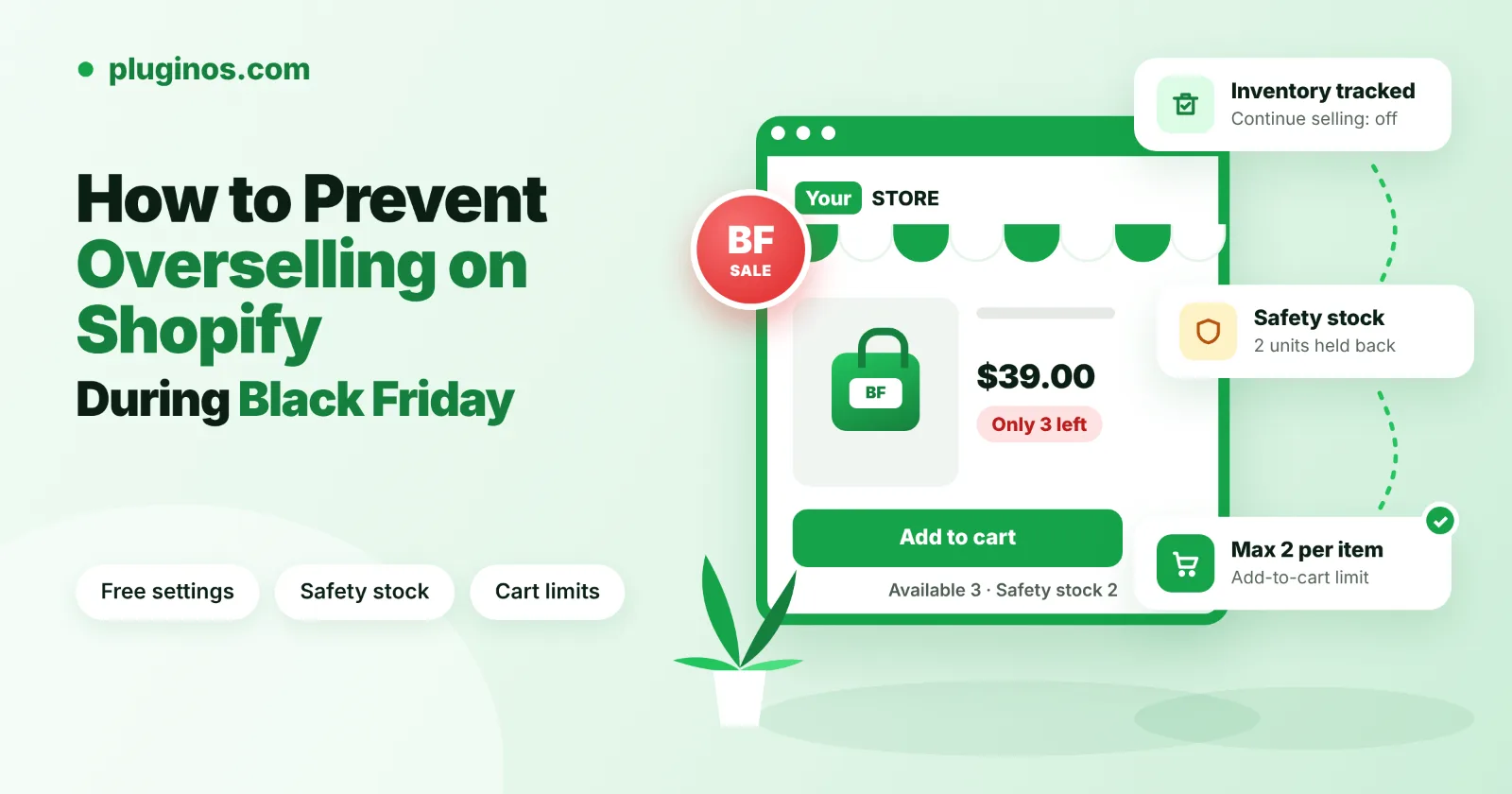
To prevent overselling on Shopify during Black Friday, you need two things: accurate stock that Shopify is allowed to enforce, and a plan for the moments when demand outruns it. Most oversells come from a setting, a location or a channel that lets an order through, not from Shopify itself.
Quick answer: Turn on Inventory tracking for every variant, make sure Continue selling when out of stock is off, and keep your sellable stock at the location that fulfills online orders. Then hold back a few units of your hottest items as safety stock, count stock before the sale starts, and set Shopify's add-to-cart limit. For limited drops, add a cart reservation timer so shoppers who add the last units actually get them.
This guide was checked against Shopify's Help Center in November 2026.
What overselling looks like on Shopify
Overselling means taking an order you can't fill. On Shopify, it usually shows up in one of three ways:
• A variant's Available count drops below zero after a busy hour.
• An order is assigned to a location that doesn't hold the stock.
• A customer pays for the last unit after someone else already bought it in-store or on another channel.
Shopify splits each location's stock into states. Available is what you can sell. Committed is set aside for unfulfilled orders, draft order reservations, and transfers. Unavailable is held by apps or for reasons such as damage or safety stock (Shopify Help Center). Preventing oversells is mostly about keeping Available honest.
Why Shopify oversells, and what stops each cause
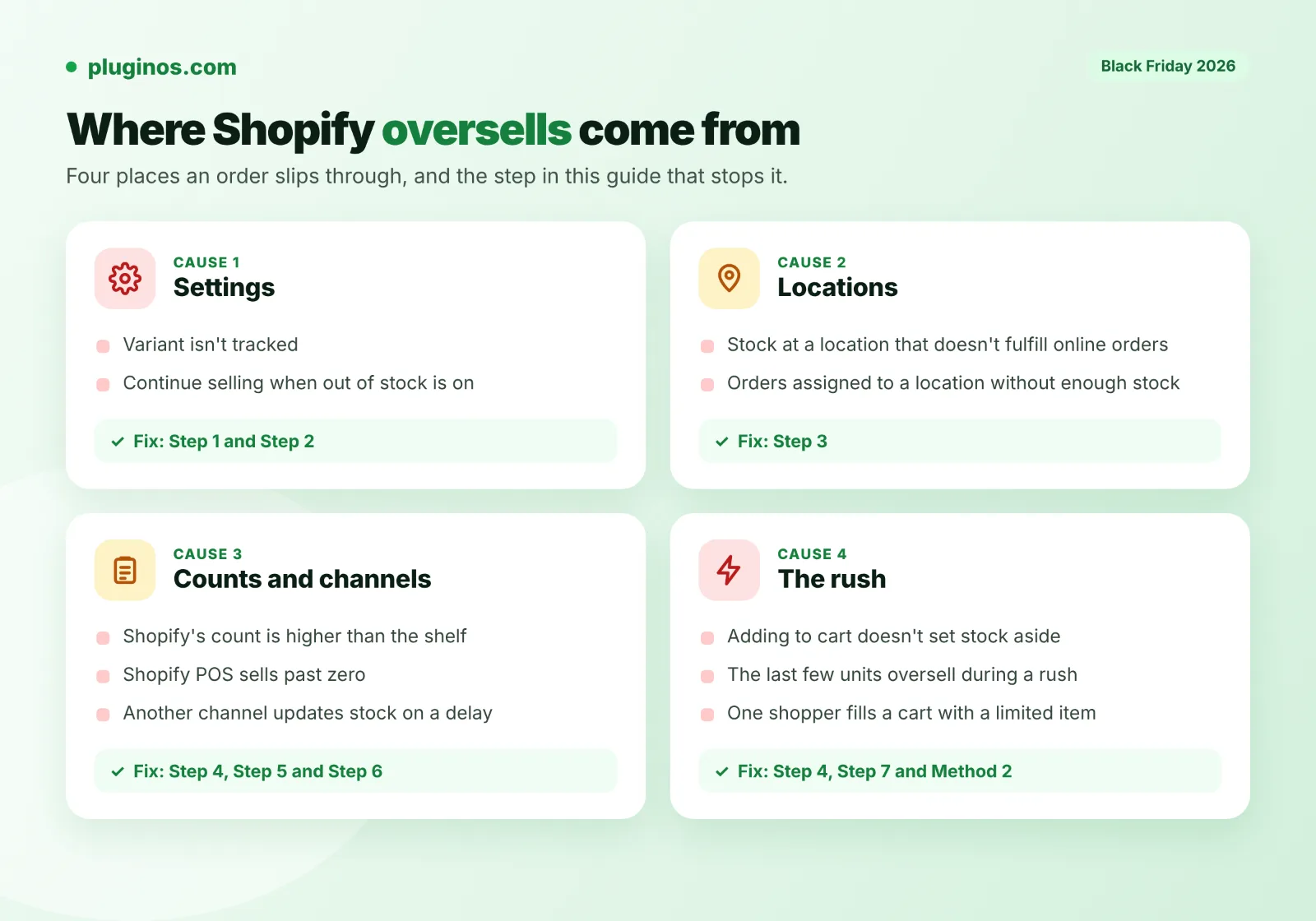
Find the cause that matches your store, then use the step in the last column. Steps 1 to 7 are free and built into Shopify; Method 2 uses an app.
What happens | Likely cause | What stops it |
Orders keep coming in at zero stock | Continue selling when out of stock is on, or the variant isn't tracked | Step 1 and Step 2 |
Product shows as sold out online while you have stock | Stock sits at a location that doesn't fulfill online orders | Step 3 |
Orders are assigned to a location without enough stock | Location and shipping-zone settings don't match where stock really is | Step 3 |
The last few units oversell during a rush | No buffer between what Shopify shows and what's on the shelf | Step 4 |
Shopify's count is higher than the shelf | Unrecorded damage, returns or miscounts | Step 5 |
Stock goes below zero after an in-store sale | Shopify POS can sell past zero | Step 6 |
A marketplace or second store sells the same units | Another channel or app updates stock on a delay | Step 6 |
One shopper fills a cart with a limited item | No cap on how many of each item fit in a cart | Step 7 |
Shoppers lose the item they added to cart | Adding to cart doesn't set stock aside | Method 2 |
Two facts explain most Black Friday oversells. First, Shopify's docs describe units moving to Committed when they're part of a placed order or a draft order reservation; they don't describe carts holding stock (Shopify Help Center). Second, merchants report oversells during high-demand drops even with Continue selling when out of stock turned off, and the Shopify Community thread on it was never resolved. So settings alone don't cover the busiest minutes.
Method 1: Stop overselling with Shopify's built-in settings (free)
Do these seven steps a week before Black Friday, while you still have time to fix what they turn up.
Step 1: Turn on inventory tracking for every variant
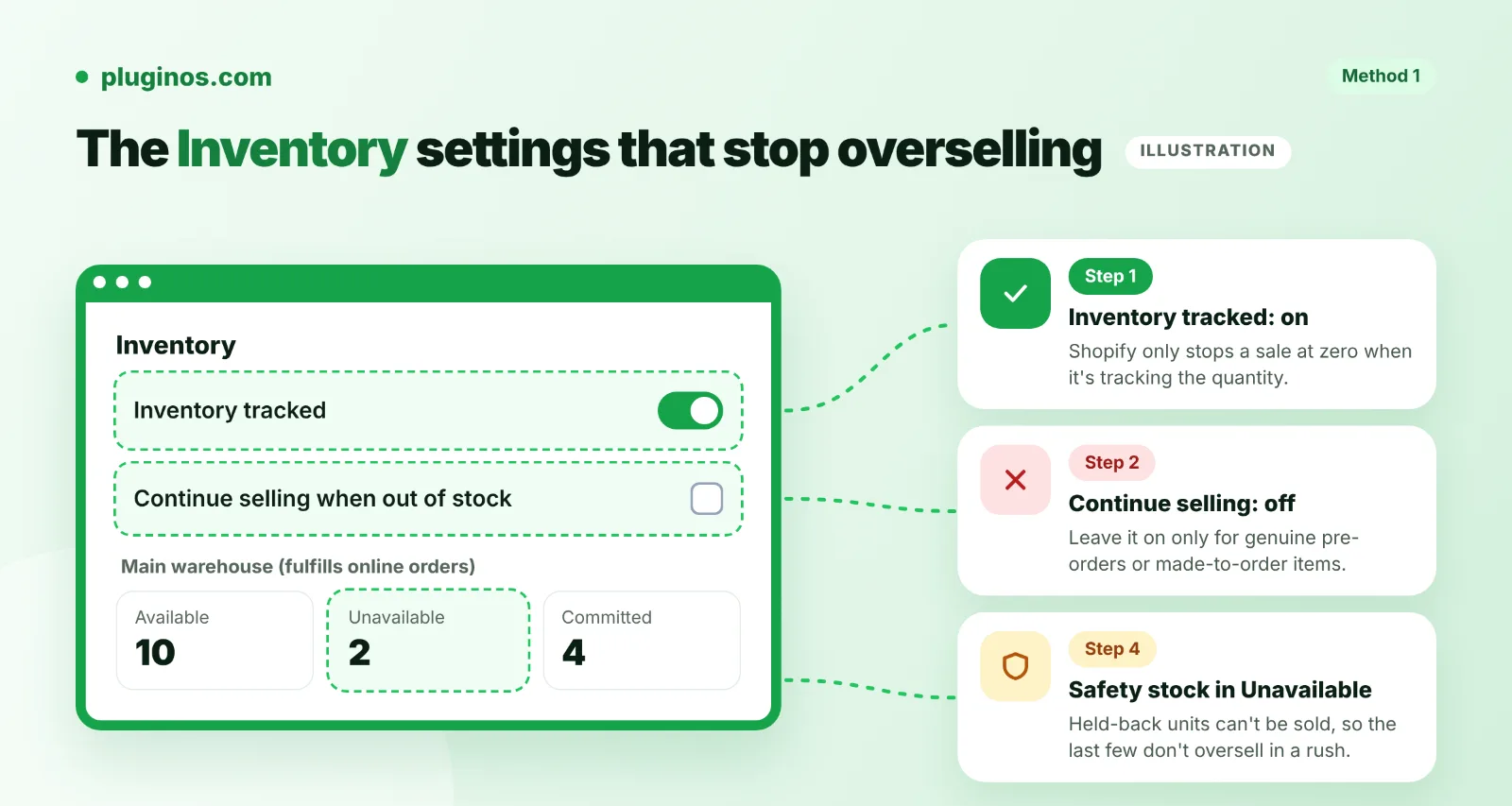
Shopify only stops a sale at zero when it's tracking the quantity. An untracked variant can be ordered however many you have.
1. From your Shopify admin, go to Products and click the product. If it has variants, click the variant.
2. In the Inventory section, turn on the setting Shopify's setup guide calls Track quantity (Shopify Help Center). Other Help Center pages call the same setting Inventory tracked.
3. Enter the Available units and click Save.
4. Repeat for every product in the sale. Missing one variant is enough to oversell it.
Step 2: Turn off "Continue selling when out of stock"
With tracking on, the default is that customers can't buy an item at zero until you add stock. The exception is the Continue selling when out of stock option in the same Inventory section (Shopify Help Center).
1. Open each sale product or variant and check the Inventory section.
2. Clear Continue selling when out of stock unless the item is a genuine pre-order or made-to-order.
3. Save, and note which products you deliberately left on.
This option is often switched on during a pre-order and never switched off again. It's the first thing to check on any product that keeps selling past zero.
Step 3: Put sellable stock where Shopify sells from
Shopify counts stock per location, and each location's count is separate. Stock can't be pooled across locations, and orders are assigned to a location by your order routing (Shopify Help Center).
1. Check that your Black Friday stock is at a location that fulfills online orders. Stock at a location that doesn't fulfill online orders won't make a product sellable online (Shopify Help Center).
2. Go to Settings > Shipping and delivery, then click Fulfillable inventory in the Shipping section.
3. If you ship from several locations, consider selecting Show only fulfillable inventory. Products then show as available only where a location can deliver to the customer's shipping zone, and Shopify notes you can't oversell inventory across shipping zones (Shopify Help Center).
Step 4: Hold back safety stock on your best sellers
A buffer is the simplest protection for the last few units. Shopify lets you move Available units to Unavailable by adjusting inventory quantities, and lists safety stock as one reason to hold units there (Shopify Help Center).
1. Pick the products most likely to sell out in the first hours.
2. Move a small number of units from Available to Unavailable as safety stock.
3.After the rush, move them back once every order has been checked.
This costs you a few possible sales on the hottest items, which is cheaper than refunding angry customers.
Step 5: Count stock and fix the record before the sale
If Shopify thinks you have 12 and the shelf holds 9, the settings above will happily sell 12.
1. Count your Black Friday products and update quantities on the Inventory page, or with the bulk editor when many variants change at once (Shopify Help Center).
2. For any variant whose count looks wrong, open the product, then the variant, and click View adjustment history in the Inventory section (Shopify Help Center).
3. Check the Created by column. It shows the staff member, app or sales channel behind each change, so you can spot an app or channel that keeps overwriting your numbers.
Step 6: Account for POS and other channels
Continue selling when out of stock doesn't apply to orders placed from Shopify POS. Staff can keep selling at zero or below, and POS warns them first (Shopify Help Center).
• Brief in-store staff: if POS warns that an item isn't available, don't override it during the sale.
• If a marketplace, wholesale store or second Shopify store sells the same units through a sync app, check how often that app updates stock. A delay of a few minutes matters during a rush, so raise your safety stock on shared products.
• Place one test order on a tracked product, confirm the quantity drops, then cancel it and confirm the stock returns, as Shopify's setup guide suggests.
Step 7: Set the add-to-cart limit
Shopify has a free add-to-cart limit that caps how many of each variant a customer can add to a cart. It's on by default, with a limit Shopify sets from your store's orders, or 50 for stores with fewer than 250 sales (Shopify Help Center). Lower it for limited items so a single shopper can't take most of your stock.
1. From your Shopify admin, go to Settings > Checkout.
2. In the Advanced preferences section, click Add-to-cart limit.
3. Turn on Set a maximum quantity per item that can be added to a cart, enter a number in the Limit field, and click Done.
4. Click Save.
The limit is store-wide and applies to each variant separately. It doesn't apply to Shopify POS, draft orders, B2B catalogs with quantity rules, untracked variants, or variants with Continue selling when out of stock turned on. Set the number with your biggest normal orders in mind, because it applies to every product.
Selling bundles or gift sets?
Black Friday is bundle season, and bundles need one extra check. If you made a gift set as a separate product and typed in its own quantity, Shopify counts it as its own item. Selling the parts on their own doesn't lower the bundle's count, so the bundle can keep selling after its parts run out. Merchants report exactly this in the Shopify Community.
1. List every bundle, gift set and multipack in your sale.
2. For any bundle that's a standalone product with its own quantity, rebuild it with Shopify's free Shopify Bundles app or a bundle app that links it to its parts. If you can't before the sale, set its quantity no higher than your scarcest part allows, and recount after each busy hour.
Place a test order for one bundle, check what happens to the counts of its parts, then cancel the order.
One difference to know: Shopify notes that bundles made with Shopify Bundles track overall stock, not stock per location (Shopify Help Center). So for those bundles, the location checks in Step 3 work differently.
What the built-in settings can't do
These steps stop most oversells, but none of them sets stock aside while a shopper is still deciding. Shopify's draft orders can reserve units with Reserve inventory, which puts them in Committed until a date and time you choose (Shopify Help Center). That works for a phone or wholesale order, not for hundreds of shoppers on a product page.
Method 2: Reserve stock in the cart with an app
For limited drops and doorbusters, a cart reservation app closes the gap the settings leave open. It holds stock for a set time once an item enters a cart, shows a countdown, and releases the units if the shopper doesn't check out.
Pluginos Reserve Items in Cart is our app for this. Its product page describes it as an app that temporarily holds inventory, shows reservation countdowns and releases stock automatically when time runs out. Here's how to set it up for Black Friday, using the features its product page lists:
1. Install the app from the Shopify App Store listing. Every plan starts with a 7-day free trial.
2. Use Reserve All or Selected Products to protect only your limited or doorbuster items. Reserving your whole catalog isn't needed.
3. Under Set Reservation Time and Limits, choose a short hold and a per-item quantity cap, so one shopper can't park your whole stock in a cart.
4. Turn on Activate Reservations When Stock Runs Low if you only want holds once stock falls below a threshold. This is part of the Pro plan.
5. In Choose Where Timers Appear, show the countdown on product pages, cart pages or both.
6. Add a test product to a cart from a private browser window, watch the timer, and confirm the stock comes back when it expires.
Pricing on the product page: Starter is $9.99 a month with 300 reservations per billing period, and Pro is $19.99 a month with unlimited reservations. The app launched on the App Store on October 2, 2026 and has no reviews yet, so test it on a few products before trusting it with a big drop.
Keep holds short. A long timer leaves stock stuck in abandoned carts while other shoppers see it as gone. Use the shortest hold that gives a real buyer time to reach checkout.
Alternatives worth knowing. Cart Reserve – Inventory Holds by R3stack has a free plan covering 3 protected products with a fixed 10-minute timer. One of its reviews reports checkout mismatches during a high-traffic flash sale, which the developer says an update will address. Whatever app you pick, load-test it before Black Friday, not on the day.
Go beyond the add-to-cart limit when you need to. Shopify's limit is one number for every variant, with no minimums. Order Quantity Limits sets minimum and maximum quantities per product, variant or collection, so you can cap a limited edition at 2 without capping socks at 2. Our guide to Shopify minimum and maximum order quantities covers the options.
Running a hype drop?
If a launch sells out in minutes, settings and timers may still not be enough. The Shopify Community thread on flash sale oversells collects what merchants try:
• Release stock in waves. List part of your stock at launch and add the rest at set times, so each wave stays manageable.
• Keep a hidden buffer. List slightly fewer units than you hold, and release the buffer once orders are checked.
• Limit each customer. A per-item cap stops one buyer clearing the drop, though it won't stop many buyers at once.
• Queue the traffic. A waiting room or queue app lets shoppers into the store in batches.
• Plan for bots. Shopify's own limited drops guide warns that bots can bulk-buy drop stock for resale, and notes that Shopify Plus stores can throttle bots when a countdown ends. On other plans, low per-item limits and a queue make a bot's job harder.
Which protection do you need?
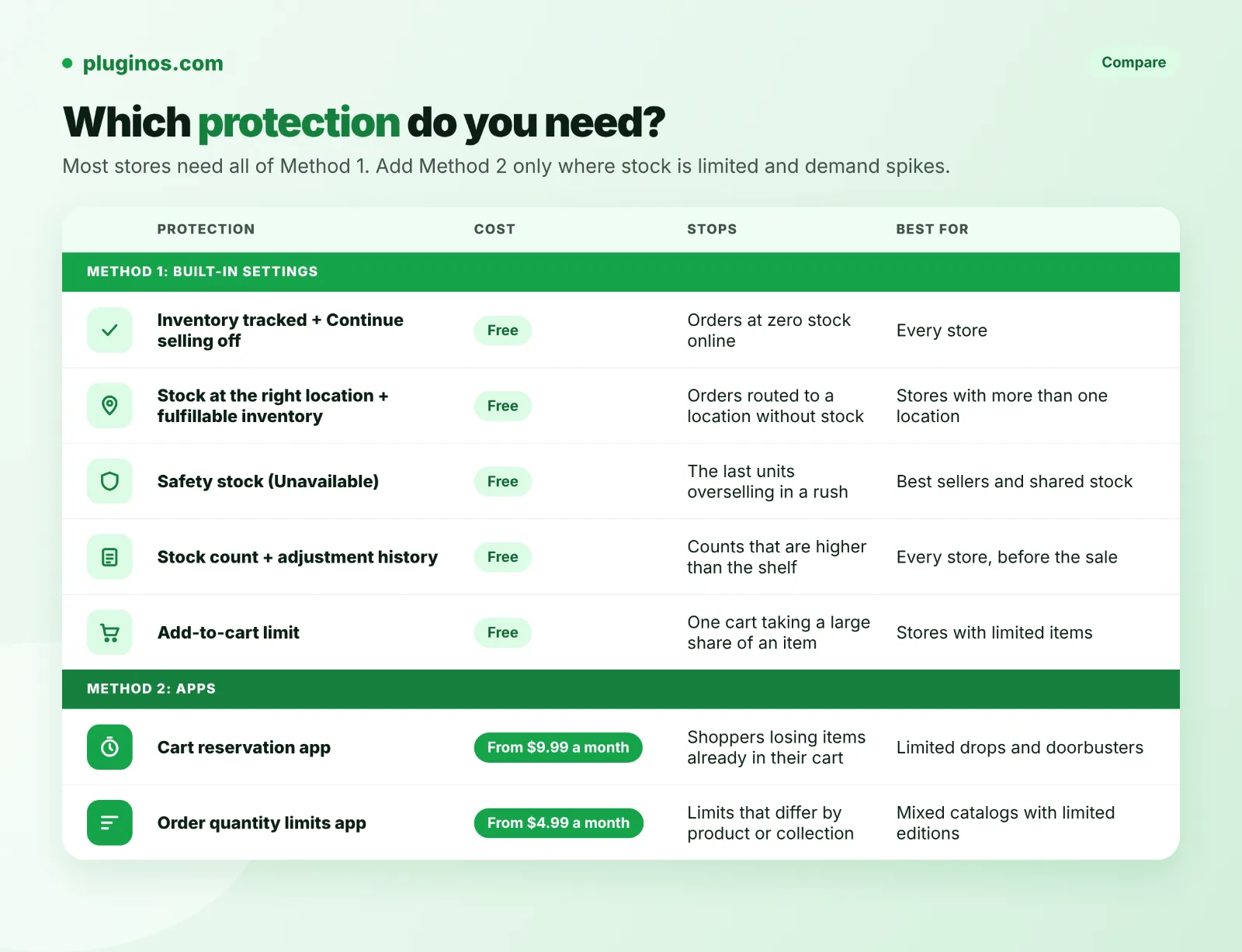
Most stores need all of Method 1. Add Method 2 only where stock is limited and demand spikes.
Protection | Cost | Stops | Doesn't stop | Best for |
Inventory tracked + Continue selling off | Free | Orders at zero stock online | POS sales below zero, wrong counts | Every store |
Stock at the right location + fulfillable inventory | Free | Orders routed to a location without stock | Wrong counts at that location | Stores with more than one location |
Safety stock (Unavailable) | Free, plus a few held-back units | The last units overselling in a rush | Long sync delays on other channels | Best sellers and shared stock |
Stock count + adjustment history | Free, plus staff time | Counts that are higher than the shelf | Live demand spikes | Every store, before the sale |
Add-to-cart limit | Free | One cart taking a large share of an item | POS and draft orders | Stores with limited items |
Cart reservation app | From $9.99 a month (Pluginos), free plan elsewhere | Shoppers losing items already in their cart | Wrong counts and POS sales | Limited drops and doorbusters |
Order quantity limits app | From $4.99 a month (Pluginos) | Limits that differ by product or collection | Wrong counts and channel delays | Mixed catalogs with limited editions |
If you oversell anyway
Act fast and tell the customer before they ask. A quick, honest message keeps most of the goodwill.
1. From your Shopify admin, go to Orders and open the order you can't fill.
2. Click More actions > Cancel order (Shopify Help Center).
3. Under Refund payment, choose Original payment method or Store credit.
4. Pick a Reason for cancellation, and leave Restock inventory selected only if units really go back on the shelf. For an oversell,Pluginos Order Quantity Limits Pluginos Reserve Items in Cart they don't, so deselect it.
5. Keep Send a notification to the customer selected, then click Cancel order.
6. Follow up with a personal email offering a discount code or a back-in-stock alert. See how to add "notify me when back in stock" in Shopify.
Your Black Friday anti-overselling timeline
Black Friday 2026 is Friday, November 27. Work backwards from it:
One week before (Fri, Nov 20)
• Check every sale variant for Inventory tracked and Continue selling when out of stock (Steps 1 and 2).
• Confirm sale stock sits at a location that fulfills online orders, and review Fulfillable inventory (Step 3).
• Set the add-to-cart limit, check how your bundles are set up, and install and test any cart reservation or quantity-limit app.
48 hours before (Wed, Nov 25)
• Count your sale products and correct Shopify's numbers (Step 5).
• Move safety stock to Unavailable on your top sellers (Step 4).
• Check sync apps for other channels, and brief POS staff not to override warnings (Step 6).
Sale morning (Fri, Nov 27)
Place one test order on a tracked product, then cancel it and confirm the stock returns.
Plan your release waves if you're running a hype drop.
During and after the sale
Watch for any variant whose Available count goes negative, and act on oversells straight away.
Move safety stock back to Available once orders are checked.
For more Black Friday tools, see our best Shopify apps for Black Friday. If an app or theme change breaks buying altogether, our Add to Cart troubleshooting guide walks through the fixes. Need inventory synced across a custom stack or marketplace? The Pluginos development team builds custom Shopify apps and automations.
Frequently asked questions
Does Shopify prevent overselling automatically?
Partly. Shopify stops online sales at zero for variants that have inventory tracking on and Continue selling when out of stock turned off. It doesn't stop Shopify POS sales below zero, delays from other channels or wrong counts, so you still need the steps above.
Why is Shopify overselling when "Continue selling when out of stock" is off?
Check that the variant has inventory tracking on, that the stock sits at a location that fulfills online orders, and that no POS sale or sync app pushed it below zero. Merchants also report oversells during fast drops with the setting off, so add safety stock or cart reservations for limited items.
Does Shopify reserve items in the cart?
Shopify's inventory docs describe stock being set aside for placed orders and draft order reservations, not for carts. To hold stock while a shopper checks out, you need a cart reservation app.
Can Shopify inventory go negative?
Yes. Shopify POS lets staff sell at zero or below after a warning, and products with Continue selling when out of stock turned on can keep taking orders past zero. A negative count is a sign to recount and check those two settings.
How do I hold back stock in Shopify without hiding the product?
Move a few units from Available to Unavailable by adjusting the inventory quantity. Shopify lists safety stock as one reason to hold units there, and the product stays on sale with the remaining units.
Why do my Shopify bundles oversell?
Usually because the bundle was set up as a separate product with its own quantity, so selling its parts on their own doesn't lower its count. Link it to its parts with Shopify Bundles or a bundle app, or cap its quantity at what your scarcest part allows.
What should I do if I oversold on Black Friday?
Contact the customer quickly, then cancel the order from More actions > Cancel order and refund them. Deselect Restock inventory if the units never existed, and offer a back-in-stock alert or a discount to keep the customer.
Written by
Pluginos
Pluginos is a WordPress, WooCommerce, and Shopify development team with 8+ years of experience building plugins, apps, and eCommerce solutions. We share practical tutorials and insights based on hands-on development experience.
Tools from this article
 Shopify
Pluginos Order Quantity Limits
Set min and max order quantity limits and target them by customer group or country.
 Shopify
Pluginos Reserve Items in Cart
Give shoppers a clear window to purchase limited-stock items. Pluginos Reserve Items in Cart is a Shopify cart reservation app that temporarily holds inventory, shows reservation countdowns, and automatically releases stock when time runs out.
Related articles
10 Best Email Marketing Apps for Shopify in 2026 (Compared)
From welcome flows to abandoned cart emails, the right email app depends on your list size and budget. We compared 10 Shopify email marketing apps, starting with Kaching Email Marketing, on pricing, automations and limits. We also explain when Shopify's built-in Messaging, with 10,000 free emails a
Nov 22, 2026 · 16 min read
10 Best Shopify Popup Apps in 2026: Pricing & Features
Popups can grow your email list or raise order value, but the wrong one slows your store or annoys shoppers. We compared 10 Shopify popup apps, led by Kaching Discount Upsell Popup, on pricing, popup types and drawbacks. We also explain how to stay within Google's guidance on intrusive popups.
Nov 22, 2026 · 17 min read
10 Best Post-Purchase Upsell Apps for Shopify in 2026
Post-purchase upsells show a one-click offer after checkout, before the Thank You page, so customers don't have to re-enter their card. We compared 10 Shopify apps, led by Kaching Post Purchase Upsell, on pricing and features.
Nov 22, 2026 · 16 min read