
How to Add “Notify Me When Back in Stock” in Shopify (2026)
Want shoppers to return when a sold-out item is available again? Learn how to add a Notify Me button in Shopify, set up restock emails with Back in Stock‑ Restock Alert Shopify App by Pluinois, and test alerts for the exact product variant a customer requested.

Sep 26, 2026 · 8 min read
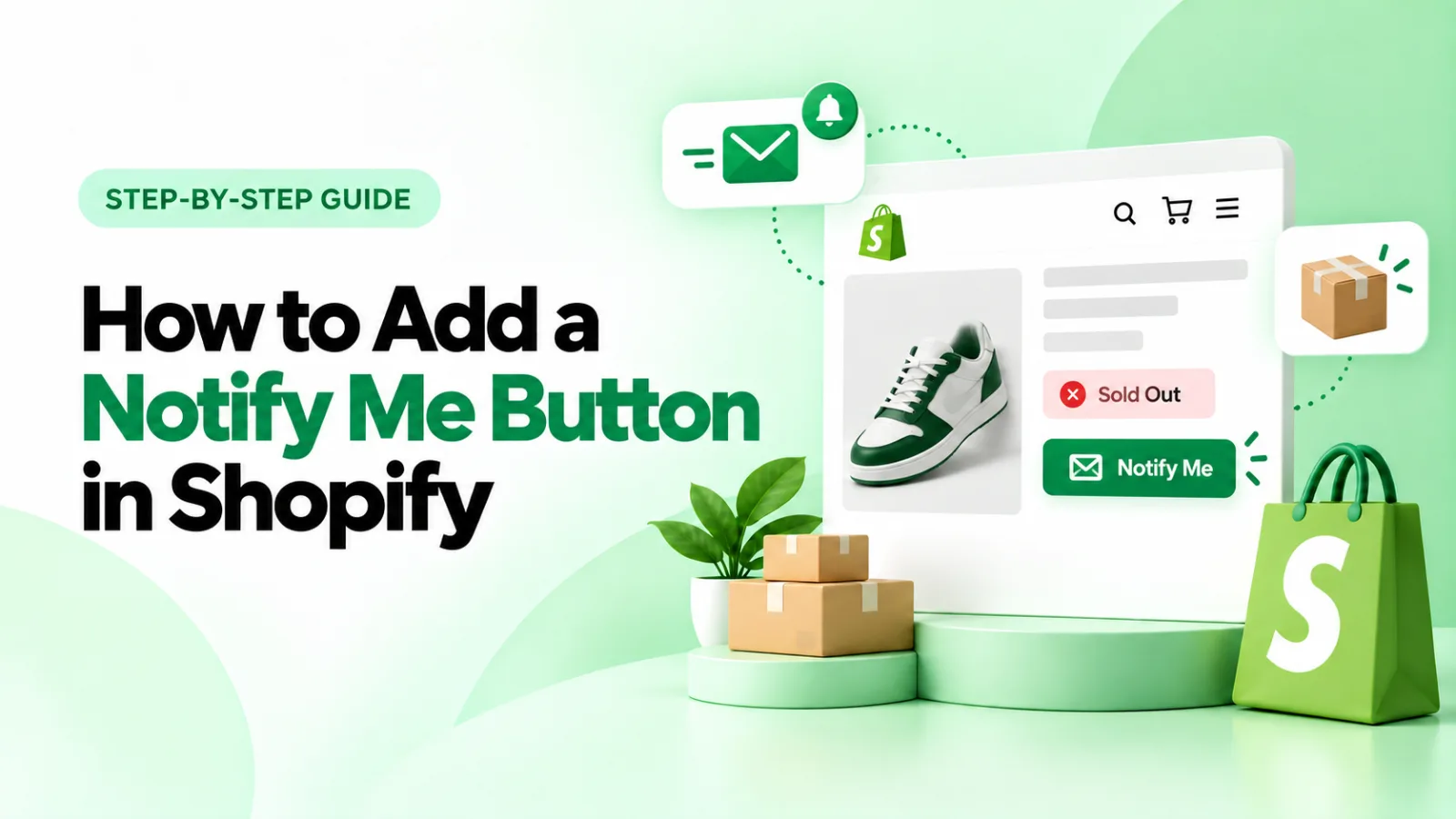
When a shopper finds the right product but their size or color is sold out, a “Notify Me” button gives them a way to hear from you when it returns. To make that promise work, your store needs more than a button: it must save the shopper’s request for the correct variant and send an alert after a restock.
The quickest route for most merchants is a Shopify back-in-stock app. In this guide, we’ll use Pluginos Back in Stock – Restock Alert as an example, then show you how to check that the full signup and email flow works. You can use the same testing checklist with another app.
How do back in stock notifications work in Shopify?
A shopper visits a sold-out product page, chooses the variant they want, and enters their email through a “Notify Me” button or form. The app records that request. When inventory for the requested variant returns, it sends a back-in-stock email with a link to the product.
That distinction matters for products with multiple sizes or colors. A shopper waiting for a medium blue shirt should not be alerted just because the large red shirt was restocked. When choosing a restock alert Shopify app, look for variant-level subscriptions and test them yourself.
For apparel stores with frequent size-specific stockouts, our guide to the best Shopify apps for small clothing stores puts restock alerts alongside inventory and fit tools.
Before you add the button
Pick an active product that customers can view on your online store. For a realistic test, use a product with two variants: set Blue / Medium to zero and leave Blue / Large available. In Shopify admin, open the product, check that inventory is tracked for the test variant, and review its Continue selling when out of stock setting. If shoppers can still buy it, some apps may not treat it as sold out. Also check whether your theme or another app already shows a notification form, so shoppers do not see two signup options.
Keep a separate email address ready for a test subscription. You’ll use it to verify both the signup and the message sent after restocking.
How to add a “Notify Me” button in Shopify with Pluginos
1. Choose and install the app
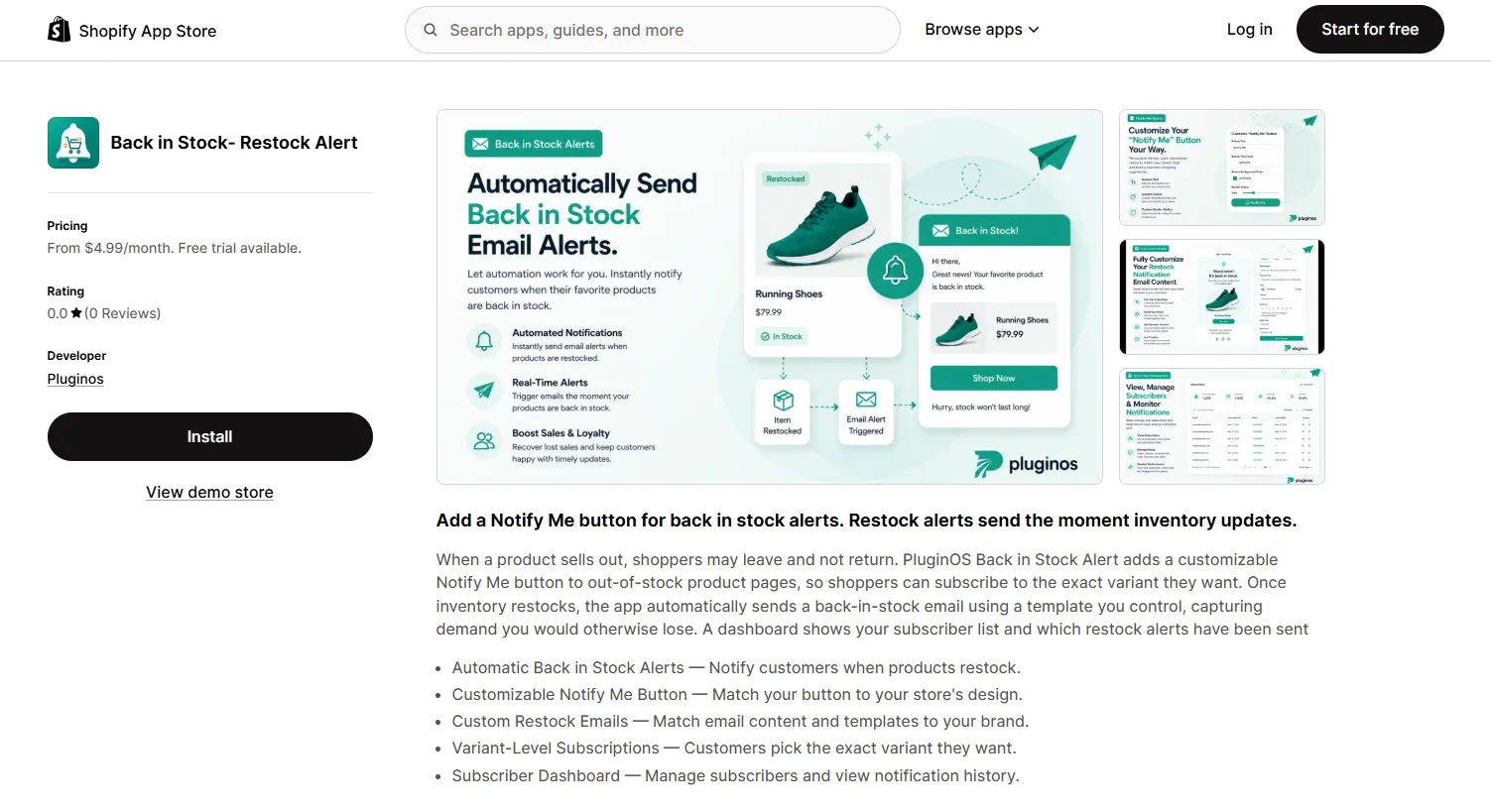
Open the PluginOS listing in the Shopify App Store and review its current plan details before installing. Its listing describes a customizable Notify Me button, subscriptions for exact product variants, automatic restock emails, editable email templates, and a dashboard for subscribers and sent notifications.
If you are deciding which app deserves a place in your store, see our guide to Shopify apps that increase sales before adding another app.
As of September 2026, the listing shows a 7-day free trial and a Starter plan at $4.99 per month, with 100 restock emails per billing period and up to three product rules. The $15.99-per-month Pro plan lists unlimited restock emails, all products, and unlimited rules. Check the current plan before installing: Starter may be a poor fit if you need alerts across a large catalog. There is no permanent free plan listed.
2. Turn on the customer-facing button
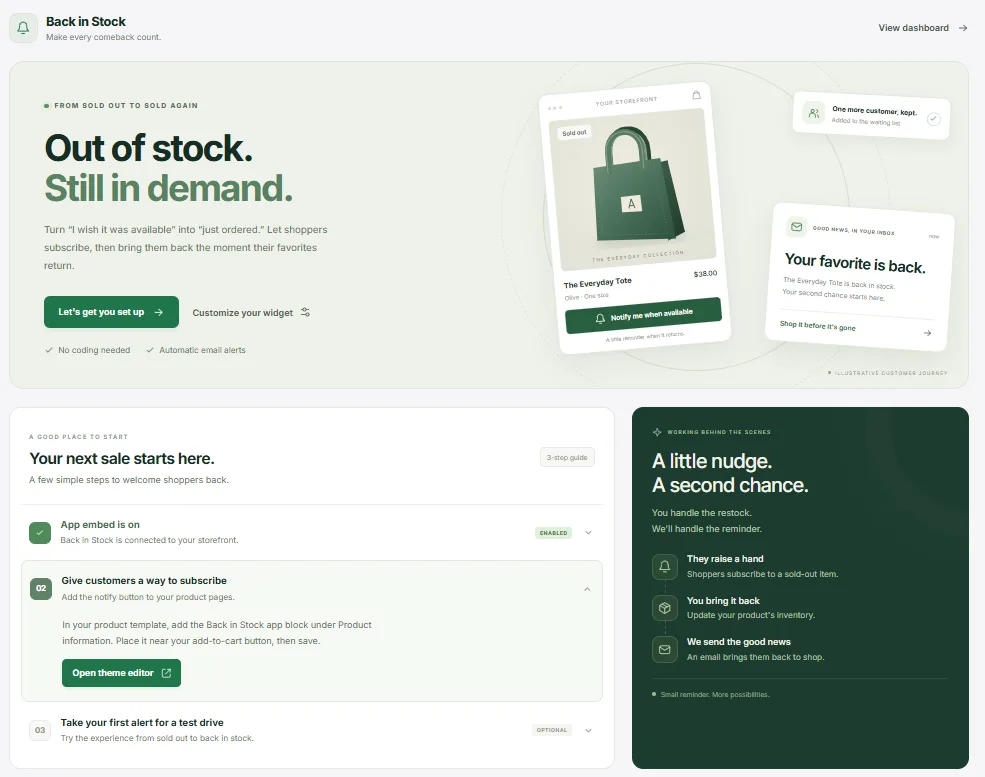
From the App Store listing, click Install, select your Shopify store, and approve the installation in Shopify admin. Open PluginOS from your installed apps and follow its activation prompt. To check the storefront, go to Online Store → Themes → Customize and select the product template used by your test item. Look for the app under App embeds or Add block in the product section, as directed by its onboarding. Enable the relevant element, save, and open the sold-out product on your storefront.
Look for the button near the purchase controls, where someone who sees “Sold out” will notice it. Select Blue / Medium, then Blue / Large: the button should follow the app’s rules for the selected variant. The developer has published screenshots of its button settings, email editor, and subscriber dashboard, but no public walkthrough of every installation screen; use the controls shown in your installed version.
3. Customize the signup and restock email
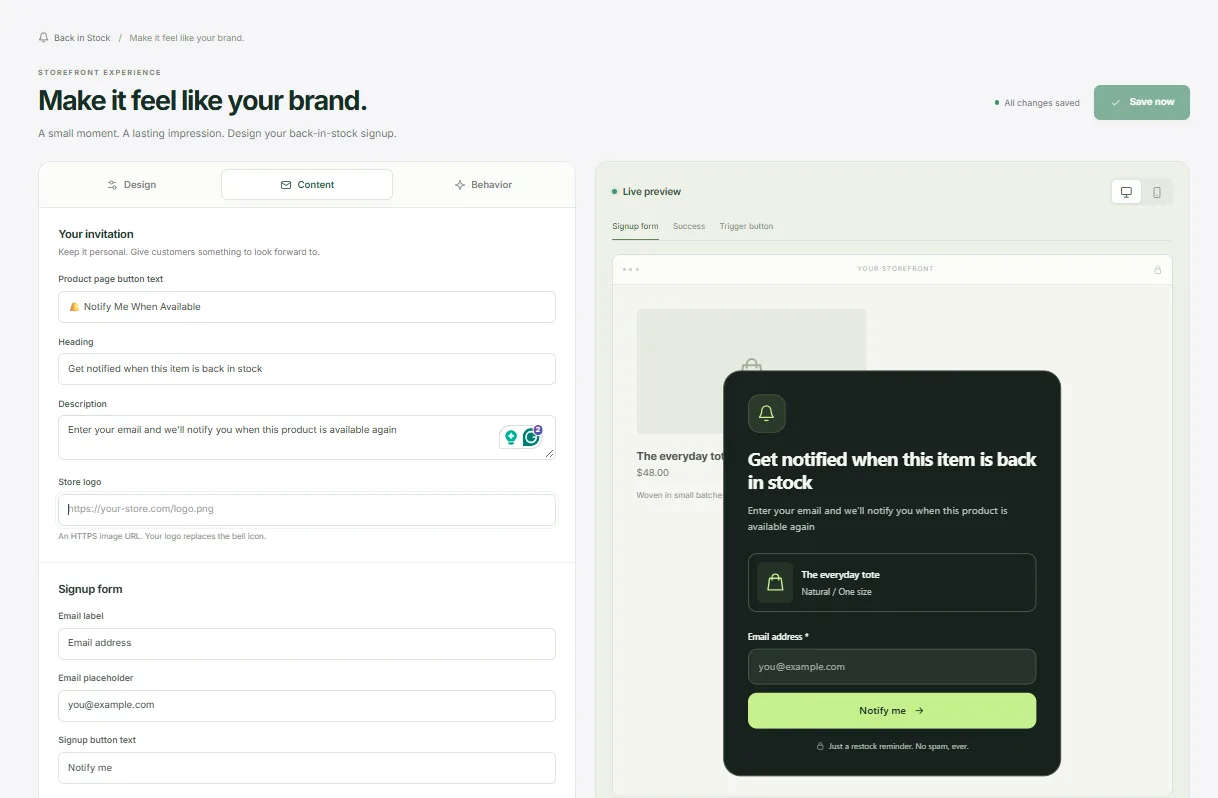
In Pluginos, open the button customization area shown in its app listing and set clear copy, such as “Notify me when available.” Check the button on mobile as well as desktop. Keep the signup short and tell shoppers that the email is for an availability alert. Then open its restock email editor and review the subject line, product name, selected variant, sender details, and product link. Send a test message if the editor offers that option; the live restock test below is still necessary.
If you want to use signup addresses for marketing beyond the requested restock alert, review your consent wording and applicable requirements separately. A request for an availability email should not be treated as blanket permission for promotional messages.
4. Test the complete flow
Do not stop when the button appears. Use your two-variant test product on the storefront:
Select Blue / Medium, the sold-out variant, and submit your test email.
Confirm the subscription appears in the app’s subscriber dashboard for Blue / Medium.
Increase inventory for Blue / Large only. A variant-specific subscription should not send the Medium alert.
Increase inventory for Blue / Medium from zero to at least one.
Check the app’s sent notification history and your inbox, including spam or promotions folders.
Open the email and confirm that its link leads to the product with the requested variant available to buy.
Shopify’s documented “Product variant back in stock” trigger uses the change from an inventory quantity of zero or less to one or more, and requires inventory tracking. PluginOS may use its own sending rules, so its dashboard and a real test email are the best checks for this setup. If there is a delay, check the app’s notification status before repeating the test.
Can you add a Shopify Notify Me button without an app?
You can display a form through some themes or build one with custom code. But a visible form does not necessarily store requests by product variant or send an automatic Shopify back in stock email. You still need a way to record who requested which item, detect restocks, and send the right message.
Shopify also documents a Flow trigger for a variant returning to stock and a Shopify Messaging workflow template for emailing waitlisted customers. Those are useful automation components, but you should verify how your chosen setup collects and matches each shopper’s waitlist request. A theme form that collects addresses without tracking variants or sending automatic messages is not a complete substitute.
Why is the Notify Me button not showing?
Work through these checks in order:
Check the theme setup. Confirm the app’s block or embed is enabled and your theme changes were saved.
Check the selected variant. A product can have one sold-out size while other sizes remain available. Select the sold-out option when testing.
Check inventory settings. Confirm inventory is tracked, the available quantity is zero, and your “Continue selling when out of stock” setting matches the app’s display rules.
Check app visibility rules. Review which products the active plan covers and whether a rule includes your test item. PluginOS Starter lists up to three product rules; Pro lists all products and unlimited rules.
Check for conflicts. A second restock app or an older theme customization may display or hide a competing button.
If the button appears but no email arrives, check that the test request was saved, the correct variant was restocked, the alert is enabled, and the app’s sent notification history records the attempt.
Frequently asked questions
Does Shopify automatically email customers when a product is back in stock?
Do not assume that a sold-out Shopify product page will automatically collect requests and email shoppers. You need to configure a signup and notification workflow. A dedicated app can provide both; Shopify Flow and Messaging also offer automation components for stores with a suitable waitlist setup.
Is there a free way to add a Notify Me button in Shopify?
Some apps offer free plans, and some themes include request forms, but features and sending limits differ. PluginOS currently offers a free trial followed by paid plans. Compare the ongoing cost and test whether any free option actually sends the alerts you need.
Can customers subscribe to a specific size or color?
Yes, if your chosen solution supports variant-level requests. PluginOS lists this feature. Test it by subscribing to one sold-out variant and restocking a different one first; the wrong restock should not trigger that shopper’s alert.
Are low stock alerts the same as back in stock notifications?
No. A low stock alert commonly warns a merchant that inventory is running down. A back in stock notification tells an interested shopper that a previously sold-out item is available again.
Final check
A useful “Notify Me” setup has three working parts: a visible signup on sold-out items, a saved request for the correct variant, and an email that reaches the shopper when that variant returns. Install the app, configure the button and message, then run an end-to-end test before relying on the alerts for customers.
Written by
Pluginos
Pluginos is a WordPress, WooCommerce, and Shopify development team with 8+ years of experience building plugins, apps, and eCommerce solutions. We share practical tutorials and insights based on hands-on development experience.
Tools from this article
Related articles
How to Set Minimum & Maximum Order Quantities in Shopify
Learn how to set minimum and maximum order quantities in Shopify native limits, B2B rules, and app-based control by product, customer, and country.
Sep 25, 2026 · 7 min read
7 Best Shopify Review Apps in 2026: Features, Pricing & Comparison
Compare 7 of the best Shopify review apps for 2026, including Judge.me, Loox, Junip, Okendo, Yotpo, Stamped, and REVIEWS.io. Explore current pricing, free plans, photo and video reviews, automated review requests, integrations, key features, and limitations to find the right review app for your Shop
Sep 25, 2026 · 21 min read
Best Shopify Apps for Small Clothing Stores in 2026
A practical guide to sizing, virtual try-on, returns, reviews, social selling, inventory, bundles, retention and specialist pricing tools.
Sep 23, 2026 · 16 min read