
6 Methods to Hide Out-of-Stock Variants in Shopify
Learn six ways to hide out-of-stock variants in Shopify without deleting them. Compare native controls, theme customizations, and automatic hiding with the HV Hide Out of Stock Variants app.

Oct 7, 2026 · 20 min read
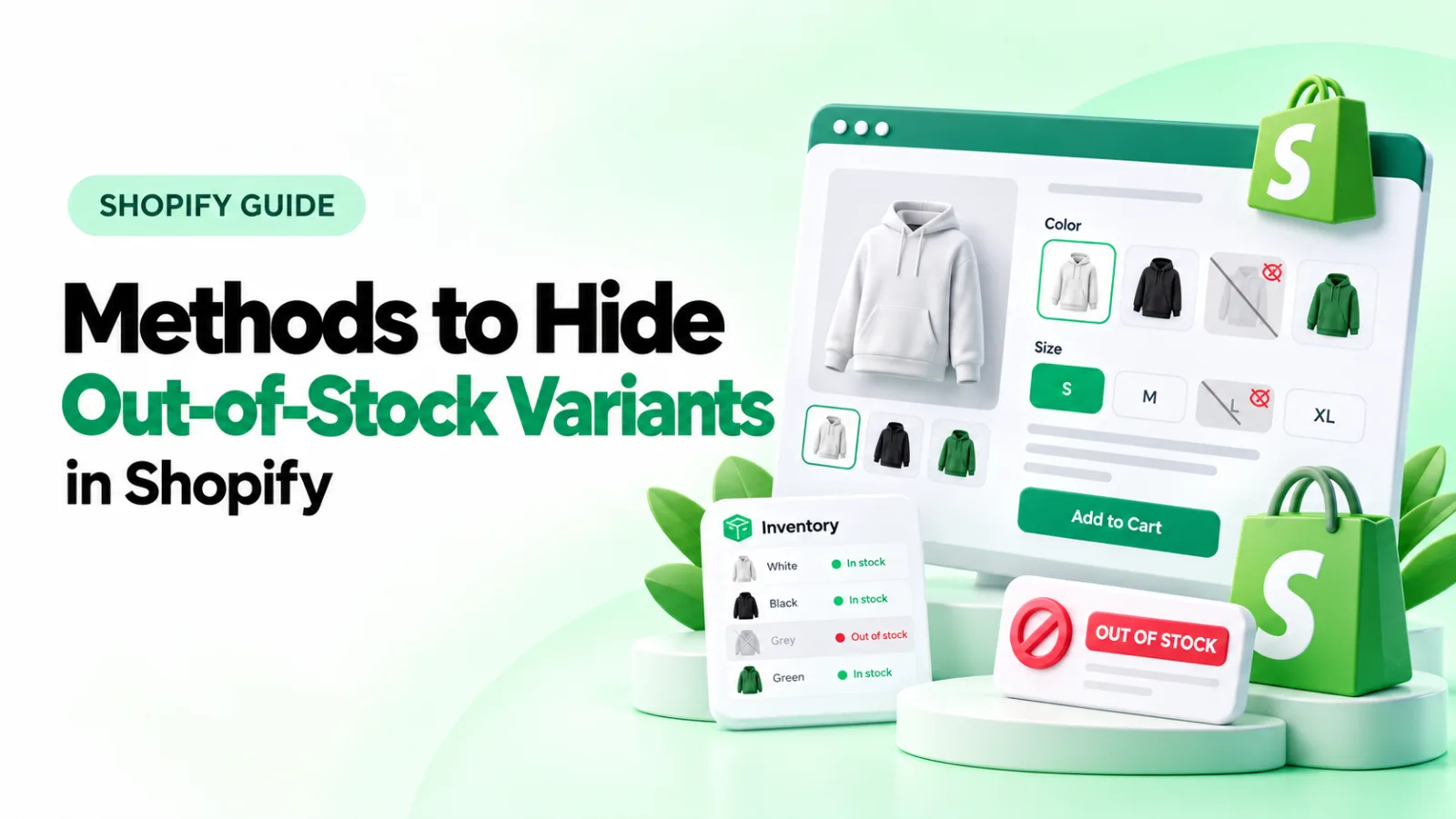
A shopper picks Olive, then Large, and the Add to Cart button turns gray. Nothing explains why. Most themes keep sold-out options visible, so if you want to hide out-of-stock variants in Shopify, you have to set that up yourself.
This guide covers six ways to do it, from a setting in your Shopify admin to theme code and an app that hides sold-out variants automatically. It also covers the parts other guides skip: products with both color and size, collection filters, SEO, and what to do when a fix stops working.
Quick answer: which method fits your store?
Pick by how often your stock changes and how comfortable you are editing theme code.
Method | Best for | Code needed | Automatic when stock changes | Cost |
1. Unpublish the variant in Shopify admin | Discontinued or paused variants | No | No, manual | Free |
2. Theme setting | Themes that include a hide option | No | Yes | Free |
3. CSS in Dawn or Horizon | Buttons and swatches | A few lines | Yes | Free |
4. Liquid edit | Dropdown pickers | Yes | Yes | Free |
5. Metafield rule | Hiding only chosen options when sold out | Yes | Yes | Free |
6. HV Hide Out of Stock Variants app | Large or fast-moving catalogs, no code | No | Yes, restores on restock | $4.99/month after a 7-day trial |
If you only have a handful of products and a variant is gone for good, use method 1. If stock moves daily and you do not want to maintain theme code, use method 6. The code methods sit in between: free, but yours to maintain after every theme update.
One warning before you start: do not delete a variant to hide it. Deleting removes its SKU, price, barcode, and image link. A recreated variant gets a new ID, which can break integrations, saved links, and product feeds that depend on the original one. Every method below lets you hide variants without deleting them.
How Shopify decides a variant is sold out
A few terms make the rest of this guide easier to follow.
Variant. One purchasable version of a product, such as Olive / Large. Each variant has its own price, SKU, and stock count.
Inventory tracking. A variant only becomes sold out if Shopify is tracking its quantity and Continue selling when out of stock is switched off. With both in place, a quantity of zero makes the variant unavailable. This blocks checkout. It does not remove the option from the product page.
Variant picker. The control shoppers use to choose options. Themes offer three styles: a dropdown menu, buttons (often called pills), and swatches, which are small color or image tiles. The style matters because each one is hidden in a different way.
Sold out vs unavailable variants. These are not the same thing:
• A sold-out variant exists but has no stock.
• An unavailable combination was never created. If Green does not come in 3XL, there is no Green / 3XL variant at all, yet many themes still show 3XL when Green is selected.
Most themes, including Dawn, mark both states the same way, so a fix for one usually affects the other. Test both cases on your own theme.
Color-and-size combinations. With two or three options, a value can be sold out in one combination and in stock in another. Large may be gone in Olive but available in Navy. A correct fix hides Large only while Olive is selected. A fix that removes Large everywhere hides stock you could have sold.
Should you hide, disable, or cross out sold-out variants?
Hiding is not always the right call. A hidden size can make shoppers assume you do not carry it. A grayed-out size shows that the option exists and may return.
Situation | Better choice | Why |
Variant is discontinued or will not return | Hide | Nothing to wait for, so it is only clutter |
One-off or limited-run items | Hide | Stock will not be replenished |
Size sells out but restocks regularly | Disable (gray out) and offer a back-in-stock alert | Shoppers learn the size exists and can sign up |
You want to show that items are selling | Cross out | Signals demand without creating a dead end |
Most options on the product are sold out | Hide | A wall of grayed-out options is harder to scan |
Many stores mix the two: hide colors that are finished for the season, and disable sizes that come back. Methods 5 and 6 below let you treat options differently.
6 methods to hide out-of-stock variants in Shopify
Before any theme edit, duplicate your theme: Online Store > Themes > ... > Duplicate. Work on the copy, test it, then publish.
Method 1: Unpublish the variant in Shopify admin
Best for: variants you choose to hide, such as a discontinued color or a size your supplier has paused.
Shopify's variant publishing lets you unpublish a single variant from a sales channel, such as your Online Store, while the rest of the product stays live. Shopify released variant-level publishing in May 2026, so many older guides still say there is no built-in way to do this. The variant keeps its SKU, price, images, and history in your admin.
Steps
1. In Shopify admin, open Products and select the product.
2. In the Variants card, set Group by to the option you want to hide, for example, Color. Each color becomes one row.
3. Tick the row for the color you want to hide. This selects every size in that color.
4. Click the ... button next to Bulk edit and choose Manage publishing.
5. Switch Online Store off, click Done, then save the product.
To bring the variant back, repeat the steps and switch Online Store on again.
In the Shopify mobile app: tap Products, open the product, tap the variant, then tap the ... menu and Manage publishing. Switch off Online Store and tap Save.
What to know
• Unpublish every variant that shares the option value. If you unpublish Olive / Small but leave Olive / Medium published, Olive stays in the picker.
• If you unpublish every variant of a product, Shopify hides the whole product from that channel until you republish at least one. See Shopify's guide to publishing product variants.
• This is a manual switch. It does not react to inventory, and Shopify does not let you set a publishing date for individual variants. When stock returns, you have to republish by hand.
• You can leave other channels, such as Point of Sale, switched on.
Limits: it does not scale to a catalog where stock changes every day. For that, use a method that reads inventory.
Method 2: Check your theme for a built-in setting
Best for: stores on a theme that already includes this option.
Some themes include a setting that hides sold-out or unavailable options. It takes a minute to check and costs nothing.
Steps
1. Go to Online Store > Themes > Customize.
2. Open a product page using the page selector at the top.
3. Click the Variant picker block in the left sidebar.
4. Look for a setting that mentions sold-out, unavailable or hidden options. Also check Theme settings for a products or variants group.
5. If you find one, switch it on, save, and test with a product that has a sold-out variant.
What to know
• Shopify's free Dawn (version 16.0.0) and Horizon themes did not include a hide setting as of September 2026. They keep sold-out options visible and style them as unavailable. If you use either theme, go to method 3 or 4.
• Settings differ between themes. Some hide only combinations that do not exist and leave sold-out ones visible. Test both cases.
• If you use a paid theme, check its documentation or ask the theme developer before editing code. If you are choosing a new theme, our roundup of the best Shopify themes is a starting point.
Method 3: Hide sold-out buttons and swatches with CSS (Dawn and Horizon)
Best for: hiding sold-out variants in Shopify without an app, when your picker uses buttons or swatches.
CSS is the code that controls how a page looks. Dawn marks each sold-out option with a class, so a short rule can hide it. The rule follows the shopper's selection as long as the theme updates those markers when an option changes, so check that Large disappears for Olive and returns for Navy.
Steps for Dawn
1. Go to Online Store > Themes > Customize and open a product page.
2. Click the Product information section.
3. Scroll to Custom CSS at the bottom of the settings panel.
4. Paste the code below and save.
/* Buttons (pills) /
.product-form__input--pill input[type="radio"].disabled:not(:checked) + label {
display: none;
}
/ Swatches */
.swatch-input__input.visually-disabled:not(:checked) + .swatch-input__label {
display: none;
}
What the code does
• It finds options Dawn has marked as sold out or unavailable and hides their labels.
• The :not(:checked) part keeps the currently selected option visible. Without it, a shopper who switches color could end up with a selected size they cannot see.
Horizon version
Horizon marks sold-out options with aria-disabled="true" instead of a class. In the theme editor, select the product section that holds the variant picker and paste this into Custom CSS:
/* Horizon: hide sold-out and unavailable buttons and swatches */
.variant-option__button-label:has(input[aria-disabled="true"]:not(:checked)) {
display: none;
}
What to know
• The class names match Dawn 16.0.0 and Horizon's theme code as of September 2026. They can change between versions, and other themes use different ones. If nothing happens, right-click a sold-out option in your browser, choose Inspect, and look for the class or attribute your theme adds to it.
• CSS hides the option visually. It stays in the page code, which is fine for sold-out variants because Shopify already blocks them at checkout.
•A sold-out option that is currently selected stays visible, so shoppers always see what is selected.
• It hides sold-out and never-created combinations alike, because these themes mark both the same way.
•CSS cannot reliably hide entries inside a dropdown. Use method 4 for that.
Method 4: Remove sold-out options from a dropdown with Liquid (Dawn)
Best for: stores whose variant picker is a dropdown.
Browsers do not let CSS reliably hide entries inside a dropdown, so the option has to be left out when the page is built. That means editing Liquid, Shopify's template language. Dawn labels sold-out dropdown entries as unavailable. This edit leaves them out, except for one that is currently selected.
Steps
1. Duplicate your theme, then on the copy click ... > Edit code.
2. Open Snippets > product-variant-options.liquid.
3. Find the block that begins with {%- elsif picker_type == 'dropdown' or picker_type == 'swatch_dropdown' -%}.
4. Directly below that line you will see an <option ...> tag that ends with </option>. Leave that tag as it is. Add the unless line before it and the endunless line after it, as shown.
{%- elsif picker_type == 'dropdown' or picker_type == 'swatch_dropdown' -%}
{%- unless option_disabled and value.selected == false -%}
<option
(keep the existing option code here, unchanged)
</option>
{%- endunless -%}
{%- endif -%}
5. Save, preview the copy, and test a product with one sold-out variant.
What the code does
Dawn already works out whether each option value is available and stores the answer in option_disabled. The added lines skip any value that is disabled, unless it is the one currently selected. Keeping the selected value avoids an empty dropdown when a shopper lands on a sold-out combination.
What to know
• Only add the two new lines. The middle line in the example is a placeholder for the code already in your theme, so do not paste it.
• Before you edit, confirm your copy of the file uses the names option_disabled and value.selected. Older Dawn versions and other themes use different names.
• Test with a two-option product. Select a color where one size is sold out and confirm that size leaves the list, then switch color and confirm it returns.
• A theme update can replace this file. Keep a note of the change so you can reapply it.
Method 5: Hide only chosen options when they sell out
Best for: stores that want discontinued options to vanish while restocking options stay visible and grayed out.
Methods 3 and 4 hide every sold-out option. Often you want something narrower: hide Mustard once it sells out because it is not coming back, but keep showing size Large because it restocks next week. A metafield, which is a custom data field on a product, lets you list the values to hide.
Steps
1. Go to Settings > Custom data > Products > Add definition.
2. Name it Hide when sold out, keep the namespace and key as custom.hide_when_sold_out, choose Single line text, and select List of values. Save.
3. Open a product and scroll to Metafields. Enter the option values to hide once sold out, for example Mustard. Spelling and capital letters must match the option value exactly.
4. On a duplicate theme, open Snippets > product-variant-options.liquid.
5. Find the {%- liquid ... -%} block inside the loop that ends with the first five lines below. Add the second block directly after it.
assign option_disabled = true
if value.available
assign option_disabled = false
endif
-%}
{%- liquid
assign hide_list = product.metafields.custom.hide_when_sold_out.value
if option_disabled and value.selected == false and hide_list contains value.name
continue
endif
-%}
6. Save and test with one listed value and one unlisted value, both sold out.
What the code does
For each option value, it checks three things: the value is sold out, it is not currently selected, and it is on the product's hide list. If all three are true, it skips the value. Everything else keeps Dawn's normal behavior, so unlisted sold-out options stay visible and styled as unavailable.
What to know
• The list holds option values, not individual variants. If two options on a product share the same text, both will match.
• The check runs before the theme draws the picker, so it is meant to cover buttons, swatches and dropdowns. Test each style your store uses.
• Do not combine it with the CSS from method 3, which would hide the unlisted options too.
• You maintain the list product by product. For a large catalog, that is the point at which an app is less work.
Method 6: Automatically hide sold-out variants with an app
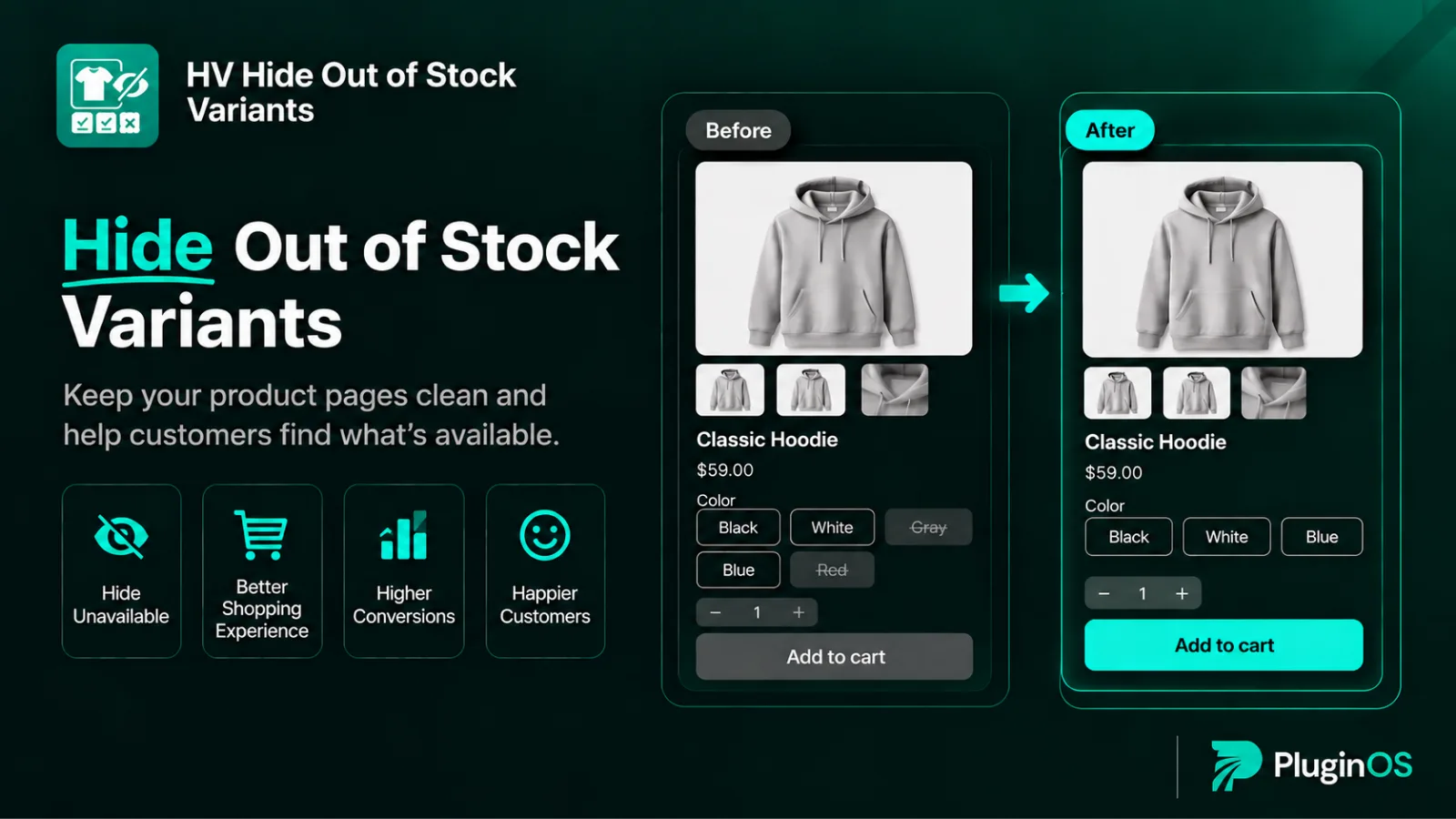
Best for: catalogs where stock changes often, stores on themes other than Dawn, and merchants who do not want to maintain theme code.
The code methods have two ongoing costs. They need rechecking after theme updates, and methods 3 and 4 apply one rule to every product. An app keeps the rules outside your theme files and lets you set different behavior for different products.
Disclosure: HV Hide Out of Stock Variants is made by Pluginos, the publisher of this guide.
HV Hide Out of Stock Variants is our Shopify app for this. It hides sold-out variants and shows them again when stock returns, without manual changes.
What it does
Three display modes. Hide, disable, or strike through, so you can apply the decision table above without code.
Automatic restore. Variants reappear when they are restocked.
Conditions beyond zero stock. Rules can also act on low inventory, a zero price, or a missing image.
Targeting. Apply rules to specific products, individual variants, collections, or product tags.
Manual overrides. Set a single variant by hand when a rule should not apply to it.
Scheduling. Give a rule a start and end date, which suits seasonal stock.
Country rules. Show or hide variants for specific countries, for example a plug type sold in one region only.
How to set it up
Install HV Hide Out of Stock Variants from the Shopify App Store and start the 7-day free trial.
Open the app from Apps in your Shopify admin.
Create a rule: choose what counts as sold out, for example inventory is 0, and whether to hide, disable or strike through the variant.
Choose where the rule applies: all products, or selected collections, tags or products.
Save the rule, then open a product with a sold-out variant on your store to check the result.
Restock the variant in your admin and reload the product page to confirm it reappears.
Cost: $4.99 per month, or $49 per year, with unlimited rules on the single plan. Check the App Store listing for current pricing.
When an app is not the right choice: if you have a few products and a variant is permanently gone, method 1 is free and takes a minute. An app earns its cost when hiding has to happen without you.
Comparing apps. Several apps in the Shopify App Store hide sold-out variants. When you compare them, check five things: which display modes they support, whether they handle products with two or three options, whether your theme is supported, how pricing changes with catalog size, and whether variants restore automatically.
Why collection filters still show sold-out sizes
Hiding a variant on the product page does not change your collection filters. A shopper filters a collection by Medium, clicks a product, and finds Medium sold out. This is a separate problem with a separate cause.
Shopify's standard storefront filters match whole products. A size filter returns any product that has that size, in stock or not, and a product counts as in stock if any one of its variants is. So selecting Medium and In stock together does not mean "Medium is in stock". Shopify describes the same logic for collection conditions: on a product-based collection, a condition is true if any variant matches it.
There are two routes to look at:
• A filter app that indexes variants. It filters before the page is built, so product counts and pagination stay correct.
• A Liquid patch in the collection template. It hides product cards whose filtered size is sold out. It is free, but the product count and pagination will not update to match.
The product-page methods in this guide still help after the click: the shopper sees fewer options they cannot buy. They do not fix the filter results themselves.
Does hiding sold-out variants affect SEO?
Hiding options in the variant picker leaves the product page live, with its URL, content and reviews. Three related actions carry more risk.
Deleting variants. A recreated variant gets a new ID. Links, reports and product feeds that pointed to the old ID no longer match.
Unpublishing or drafting the whole product. The product URL stops working for shoppers and search engines. If a product is only temporarily sold out, keep the page live. Remember that unpublishing every variant has the same effect.
Unpublishing a variant that has its own traffic. If ads or product feeds point to a specific variant, check them after you unpublish it with method 1.
If you run Google Shopping or another product feed, check after any change that the feed still reports each variant's availability correctly. The feed reads your product data, not your picker, so hiding an option with CSS or Liquid does not change what the feed says.
Option order matters on color and size products
Dawn and many other themes work out whether an option is available from the options chosen before it. That makes the order of your options part of the result.
Take a T-shirt where Black / Medium is sold out and Blue / Medium is in stock.
Color listed first: a shopper picks Black and Medium is hidden. They switch to Blue and Medium returns.
Size listed first: Medium stays visible, because it is in stock in Blue. After the shopper picks Medium, Black becomes the unavailable option instead.
Put the option shoppers choose first, usually color, first in the product's option list. Hidden options then follow the order people shop in.
Test checklist before you go live
Run these checks on a product with at least one sold-out variant.
The sold-out option is hidden or disabled on the product page.
On a two-option product, switching the first option shows and hides the right values in the second.
Restocking the variant brings it back. Republish it first if you used method 1.
A product with every variant sold out still behaves the way you want.
An old direct link containing ?variant= for the hidden variant does not allow a purchase.
Quick-add pop-ups and featured-product sections show the same result. They often use separate code from the product page.
The picker looks right on a phone, with no odd gaps where options were hidden.
After your next theme update, the code or app still works.
Troubleshooting
Problem | Likely cause | Fix |
Nothing changed on the live store | You edited the duplicate theme, or the page is cached | Publish the edited theme, then check in a private browser window |
The CSS has no effect | Your theme uses different class names | Inspect a sold-out option in the browser and use the class your theme adds |
A sold-out variant is not marked sold out at all | Inventory is not tracked, or Continue selling when out of stock is on | Turn on tracking and turn off continue selling for that variant |
A size is hidden in every color | With size listed first, it only hides when sold out in every color; otherwise the code is not following the selection | Check stock for that size in each color, then test both option orders |
An unpublished color still shows | Some sizes in that color are still published | Group by color and unpublish the whole row |
The whole product disappeared | Every variant was unpublished | Republish at least one variant |
The picker shows a selection with no visible option | The selected variant is sold out and was hidden | Keep the :not(:checked) or value.selected == false condition in place |
It stopped working after a theme update | The update replaced the edited file | Reapply the edit, or move to a method that lives outside theme files |
The dropdown still lists sold-out options | CSS does not work on dropdown entries | Use method 4 |
Frequently asked questions
Does Shopify hide out-of-stock variants automatically?
No. Shopify stops sold-out variants from being purchased when inventory is tracked, but most themes keep showing them in the variant picker. Hiding them takes a theme setting, code, or an app.
Can I hide a variant in Shopify without deleting it?
Yes. Unpublish it from the Online Store channel with Manage publishing (method 1). The variant and its data stay in your admin and can be republished at any time.
How do I hide sold-out variants in Shopify without an app?
Use a theme setting if your theme has one. On Dawn, add the CSS in method 3 for buttons and swatches, or the Liquid edit in method 4 for dropdowns.
Will hidden variants come back when I restock?
With the code methods and with an app, yes, because they read live availability. With manual unpublishing in method 1, no. You have to republish the variant yourself.
Can I hide variants that are still in stock?
Yes. Unpublishing in method 1 works regardless of stock. HV Hide Out of Stock Variants also supports manual per-variant overrides and rules based on low inventory.
What is the difference between sold-out and unavailable variants in Shopify?
A sold-out variant exists but has no stock. An unavailable variant is an option combination that was never created. Most themes style both the same way, so check both when you test a fix.
Is it better to hide or disable sold-out variants?
Hide variants that will not return. Disable or cross out variants that restock, and pair them with a back-in-stock alert so shoppers can sign up.
Choosing your method
To hide out-of-stock variants in Shopify, match the method to how your stock behaves:
A variant is paused or discontinued: unpublish it in admin (method 1).
You use Dawn or Horizon and are comfortable with small code edits: CSS for buttons and swatches (method 3), Liquid for dropdowns (method 4), or a metafield rule for chosen options (method 5).
Stock changes often, or you would rather not maintain code: use a Hide Out of Stock Variants Shopify App, which hides, disables or strikes through sold-out variants and restores them on restock, with a 7-day free trial.
Whichever you choose, run the test checklist on a product with two options and at least one sold-out combination before you publish.
Written by
Pluginos
Pluginos is a WordPress, WooCommerce, and Shopify development team with 8+ years of experience building plugins, apps, and eCommerce solutions. We share practical tutorials and insights based on hands-on development experience.
Related articles
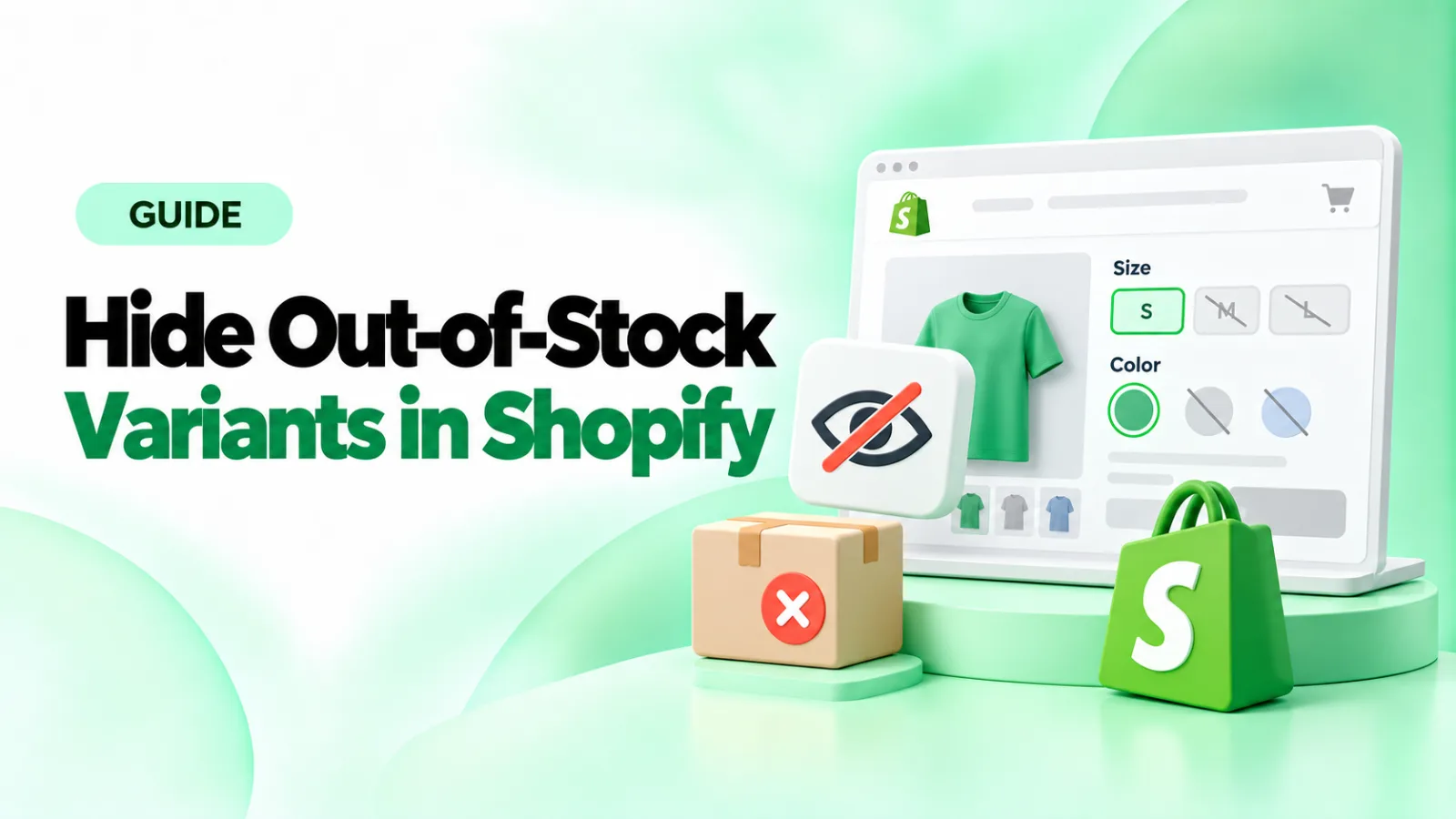
How to Hide Sold-Out Variants in Shopify With Pluginos
Learn how to hide sold-out variants in Shopify with HV Hide Out of Stock Variants by Pluginos. Set visibility rules and automatically restore variants after restocking.
Sep 30, 2026 · 6 min read
10+ Best Shopify Subscription Apps in 2026: Pricing & Features Compared
Compare the 10 best Shopify subscription apps in 2026, including Appstle, Recharge, Seal, and Shopify Subscriptions. Explore pricing, transaction fees, key features, and the best option for your store.
Sep 28, 2026 · 12 min read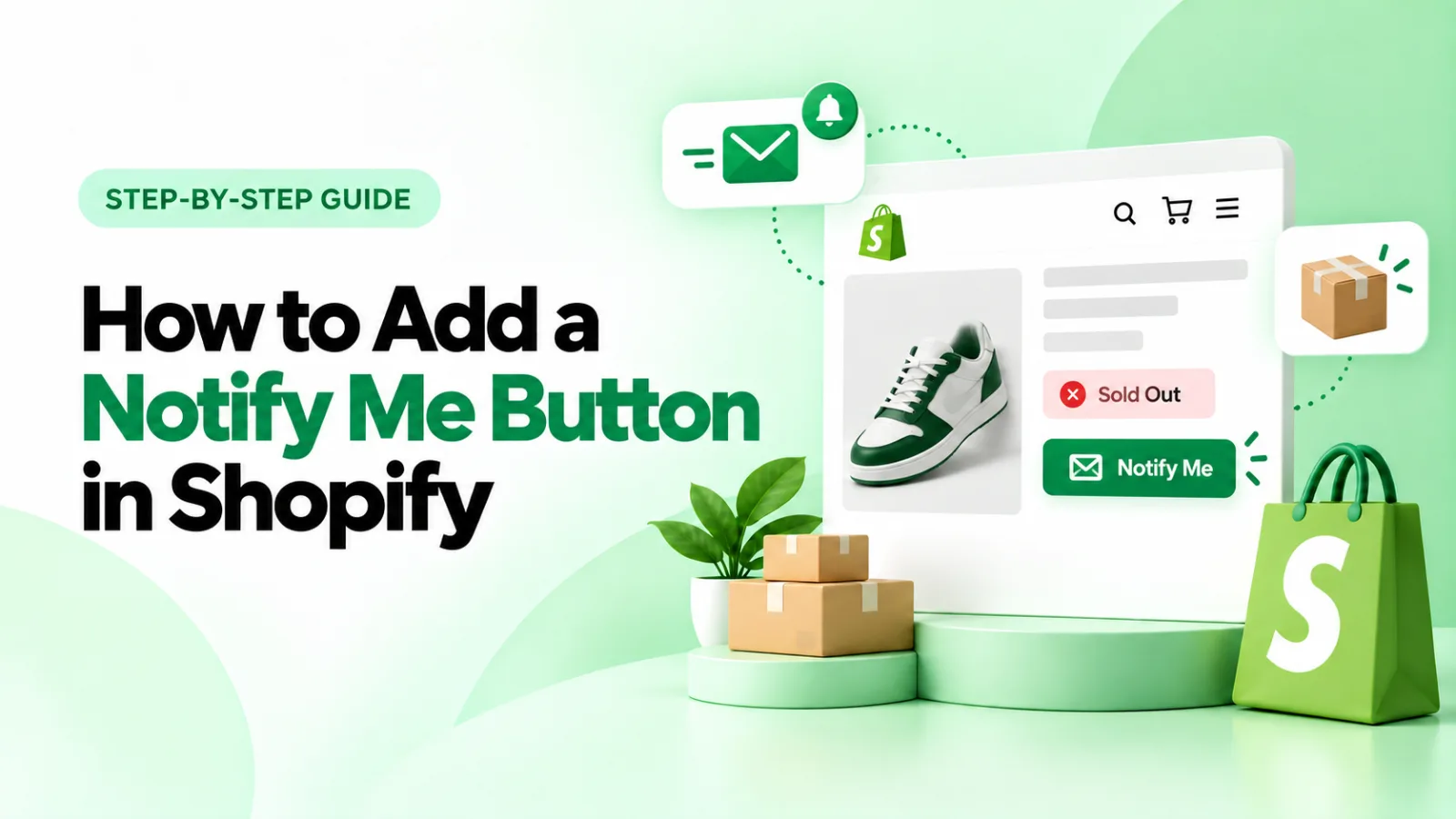
How to Add “Notify Me When Back in Stock” in Shopify (2026)
Want shoppers to return when a sold-out item is available again? Learn how to add a Notify Me button in Shopify, set up restock emails with Back in Stock‑ Restock Alert Shopify App by Pluinois, and test alerts for the exact product variant a customer requested.
Sep 26, 2026 · 8 min read